Before you start
- A name for the job: what and where
- A start date and an end date. A good guess is fine
- The client's name · Optional
- A budget. A rough number works · Optional
- The site address, or a spot on the map · Optional
Check this first: project or milestone?
A project is one whole job, for one client, at one place. Kitchen remodel, 14 Oak St. is a project.
A milestone is one big step inside that job, such as Demolition or Handover. Milestones live inside a project.
Ask: will this have its own budget, and be billed and closed on its own? If yes, make a project. If not, add a milestone.
Right: 1 project, many milestones
Kitchen remodel, 14 Oak St.Project · one budget
- Design & selections
- Demolition
- Rough-ins
- Drywall
- Cabinets & countertops
- Walkthrough
Wrong: milestones as projects
- Framing, 14 Oak St.Project · its own budget
- Plumbing, 14 Oak St.Project · its own budget
- Handover, 14 Oak St.Project · its own budget
Create the project
- On your Home page, choose Create project. The window opens.
- On Basics, type the Project title. Say what and where, like "Kitchen remodel, 14 Oak St."
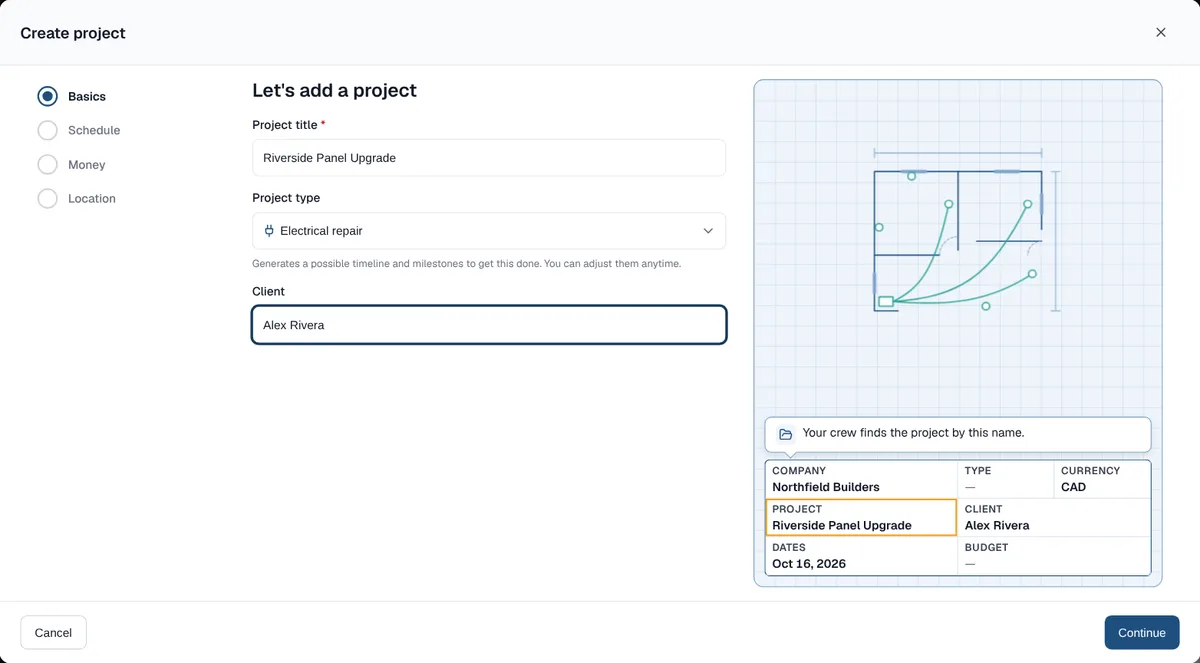
Basics: a title and a project type. The preview on the right fills in as you type. - Check the Project type ProtoPM suggests, and add the Client if you want. Choose Continue.
- On Schedule, pick the End date, or use +3 months, +6 months or +1 year. Choose Continue.
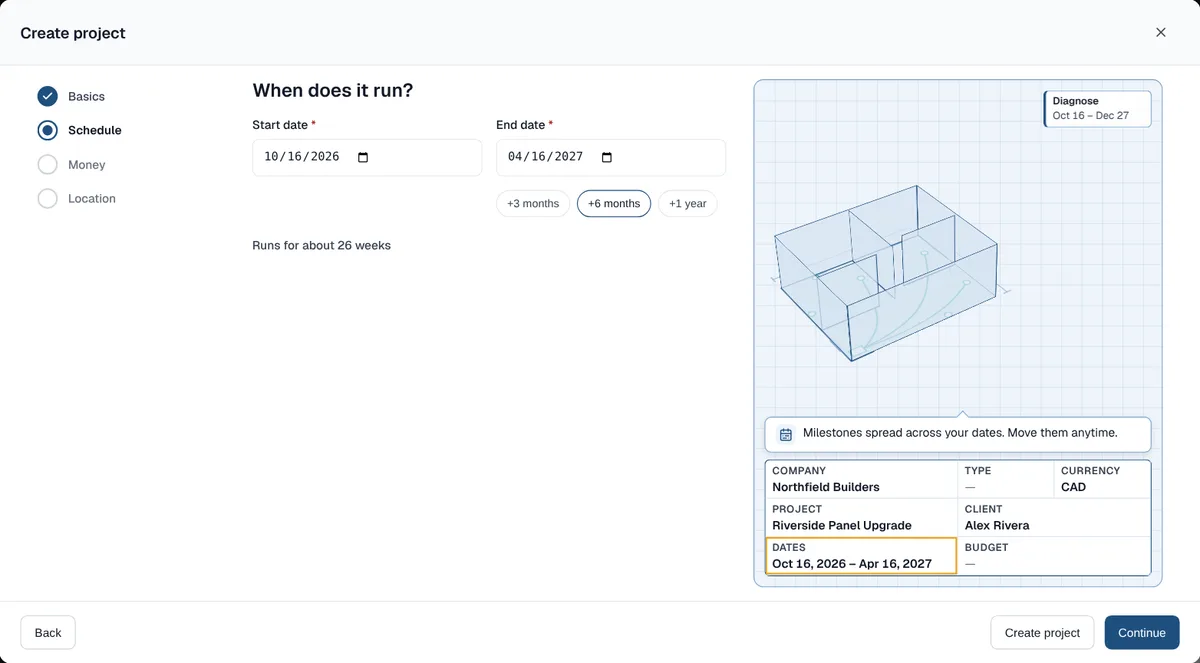
Schedule: tap a quick pick and the milestones spread across the dates. - Optional: On Money, type a Budget. Choose Continue.
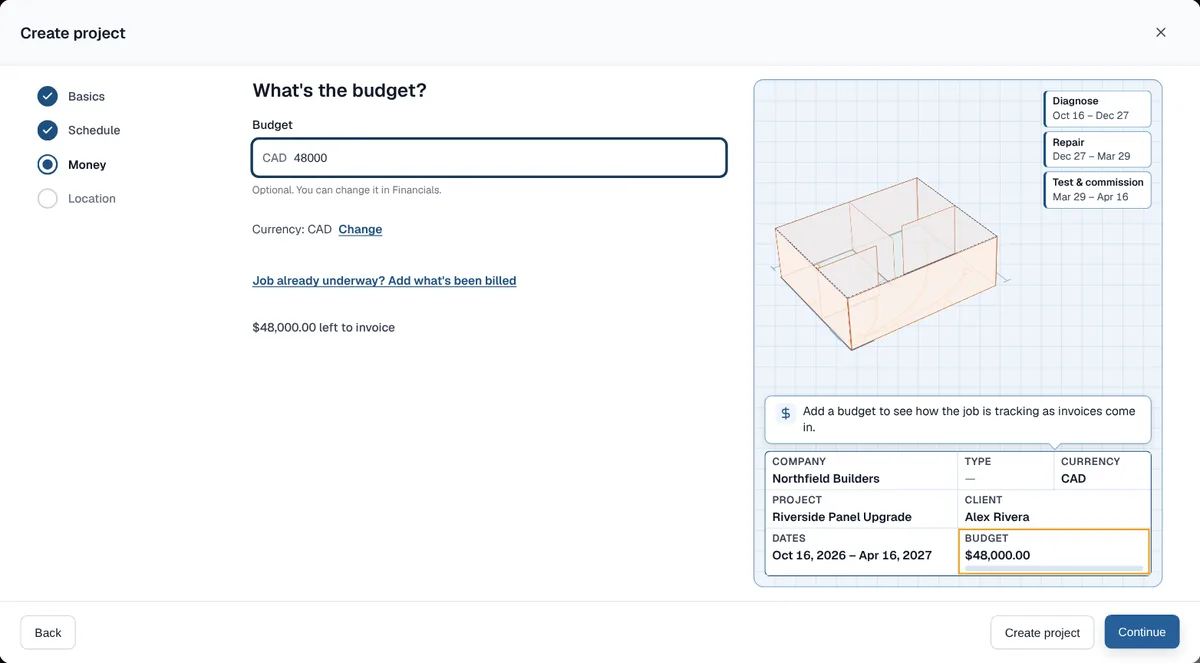
Money: optional. Add a budget now or later in Financials. - Optional: On Location, search the address or click the map to drop a pin. Or choose I'll add the site later.
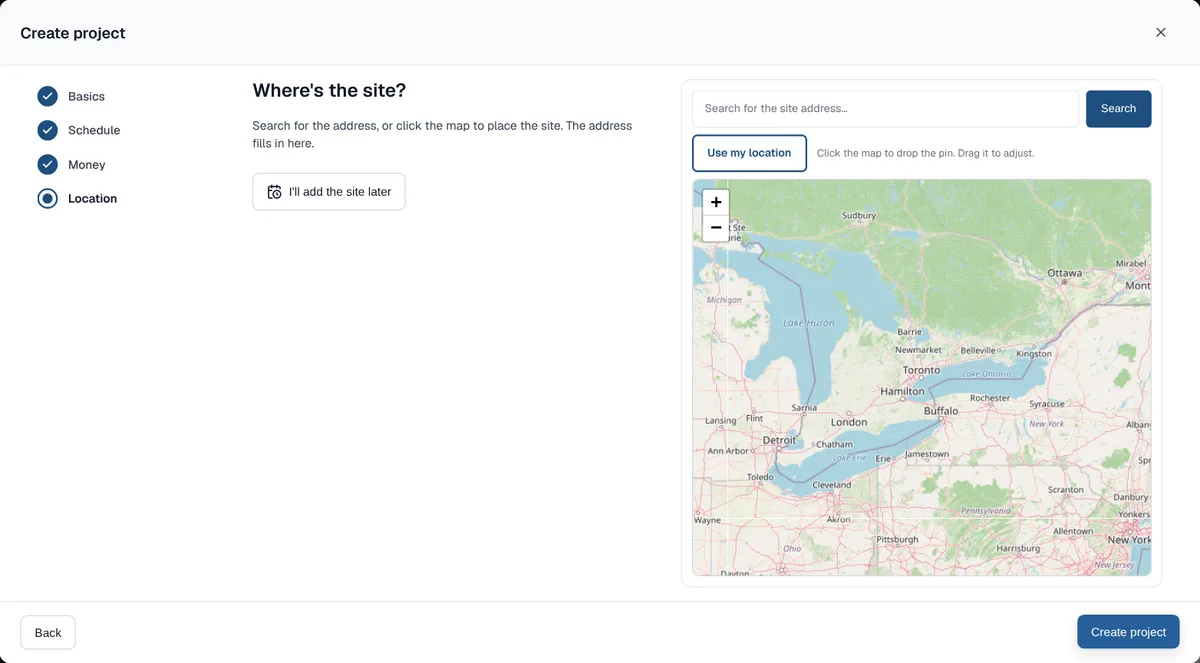
Location: search, drop a pin, or add the site later. - Choose Create project.
After you create it
The window closes and you stay on your Home list. A message says "Project added to" your company, and the new project flashes in the list.
It does not open by itself. You are its Owner (the person in charge of it).
- On your Home list, choose the new project.
- Open the Schedule tab. Your starter milestones are laid out between your dates.
- Rename or delete any milestone that doesn't fit your job.
- Choose Add milestone for anything missing.
Plan it well
- A new client, a new site or a new contract is a new project.
- Name it with what and where. "Kitchen remodel, 14 Oak St." beats "Smith job".
- Pick the closest Project type. It starts you with milestones, and you can change them.
- Set a realistic end date. Milestones spread across your dates, so a wrong end date spreads them wrong.
- Add a rough budget. ProtoPM then shows how the job is tracking as invoices come in.
- Keep milestones to the big steps. A small repair may need 3 or 4. A big build may need 10 or more.
Good to know
- Only the title and the dates are required. Create project is there from the Schedule screen on.
- More than one company? Basics also asks which company the project belongs to.
- If you skipped the budget or the site, ProtoPM asks once: "Create it without a budget or site?" Choose Add them first or Create project.
- Job already underway? On Money, choose Job already underway? Add what's been billed.
- Account Guests don't see Create project.
Common questions
- How do I create a project in ProtoPM?
- On your Home page, choose Create project. Fill in Basics, Schedule, Money and Location, then choose Create project. Only the title and the dates are required.
- Is a milestone the same as a project?
- No. A project is one whole job. A milestone is one big step inside it, such as Demolition or Handover. Add milestones in the project's Schedule tab.
- Can I change the dates or the budget after I create a project?
- Yes. Change the planned dates in the Schedule tab and the budget in Financials.
- How many projects can I create?
- As many as you need. ProtoPM Free has unlimited projects. No credit card.