Add a punch item
- Open the project, choose Field, then Punch list.
- Choose Add item and type what needs fixing, up to 200 characters.
- Set what helps: priority, location, trade, due date, who it's for, a description and a photo.
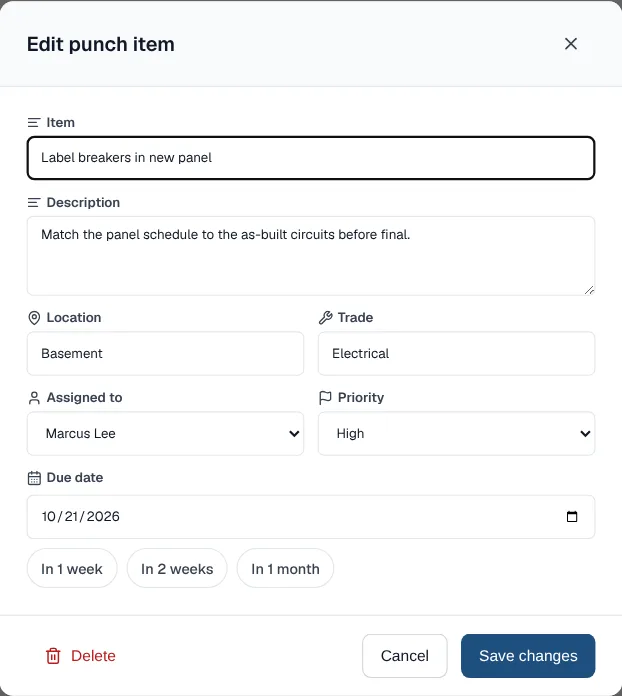
Everything about an item in one window. - Choose Save item.
- Priority is Low, Normal or High. High items show a badge in the list.
- Due date quick picks add 1 week, 2 weeks or 1 month.
- To change an item later, click its title, edit it and choose Save changes.
Assign it to someone
- Assigned to lists the project's members. Guests can't be assigned.
- The row shows who the item is assigned to.
- If someone leaves the project, their punch items become unassigned.
- People with view-only access can open an item to read it but can't change it.
What the list shows
- Open items first, then finished ones. Open items run soonest due first, with undated ones last.
- A High priority badge on urgent items, and an Overdue badge once the due day has ended in your time zone.
- A line under each title with the location, trade, due date and who it's for.
- A checkbox on each row marks the item done, or open again, in one tap.
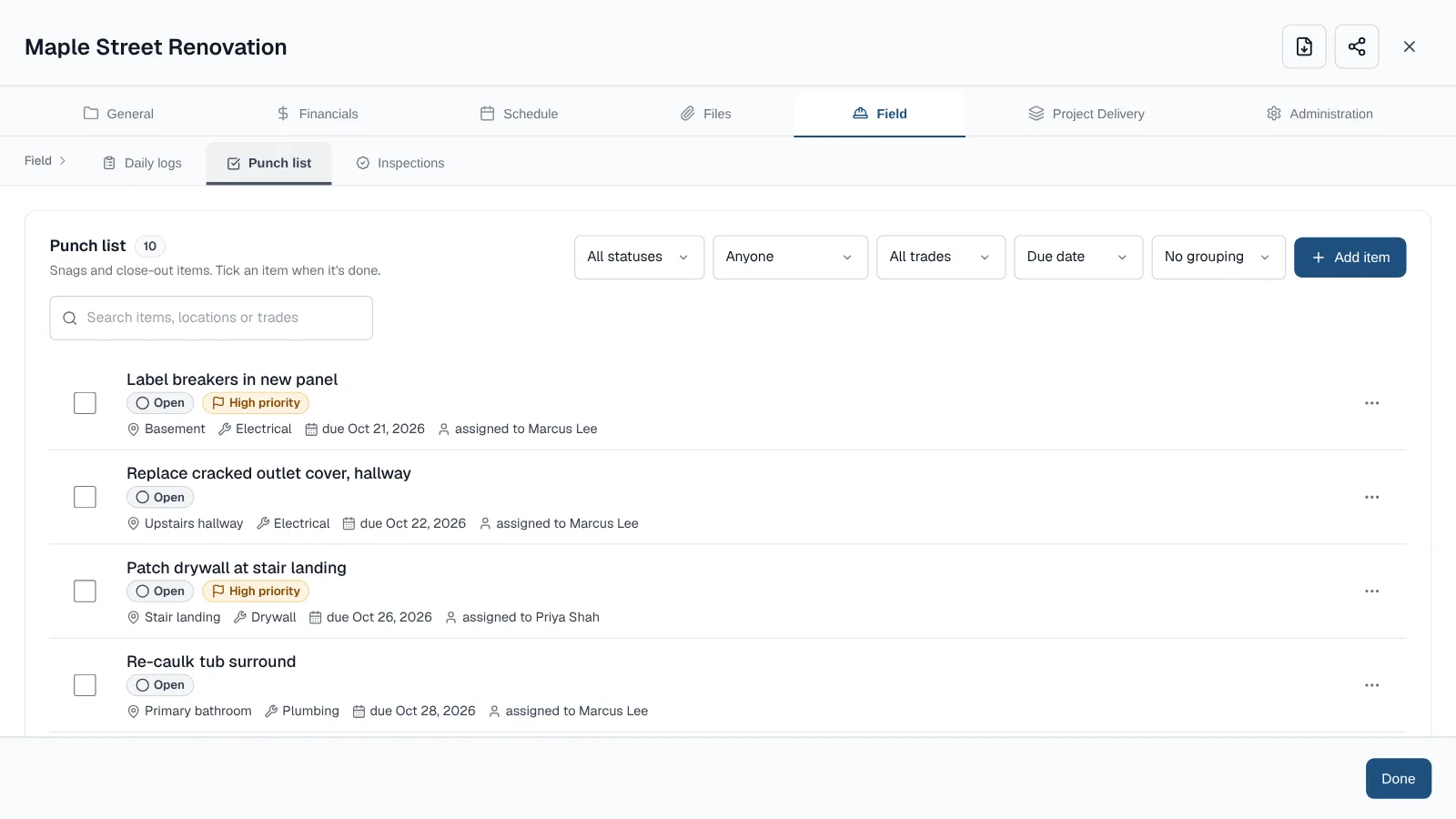
Plan the walk: filter, group and search
- Filter by status, by who it's for, or by trade.
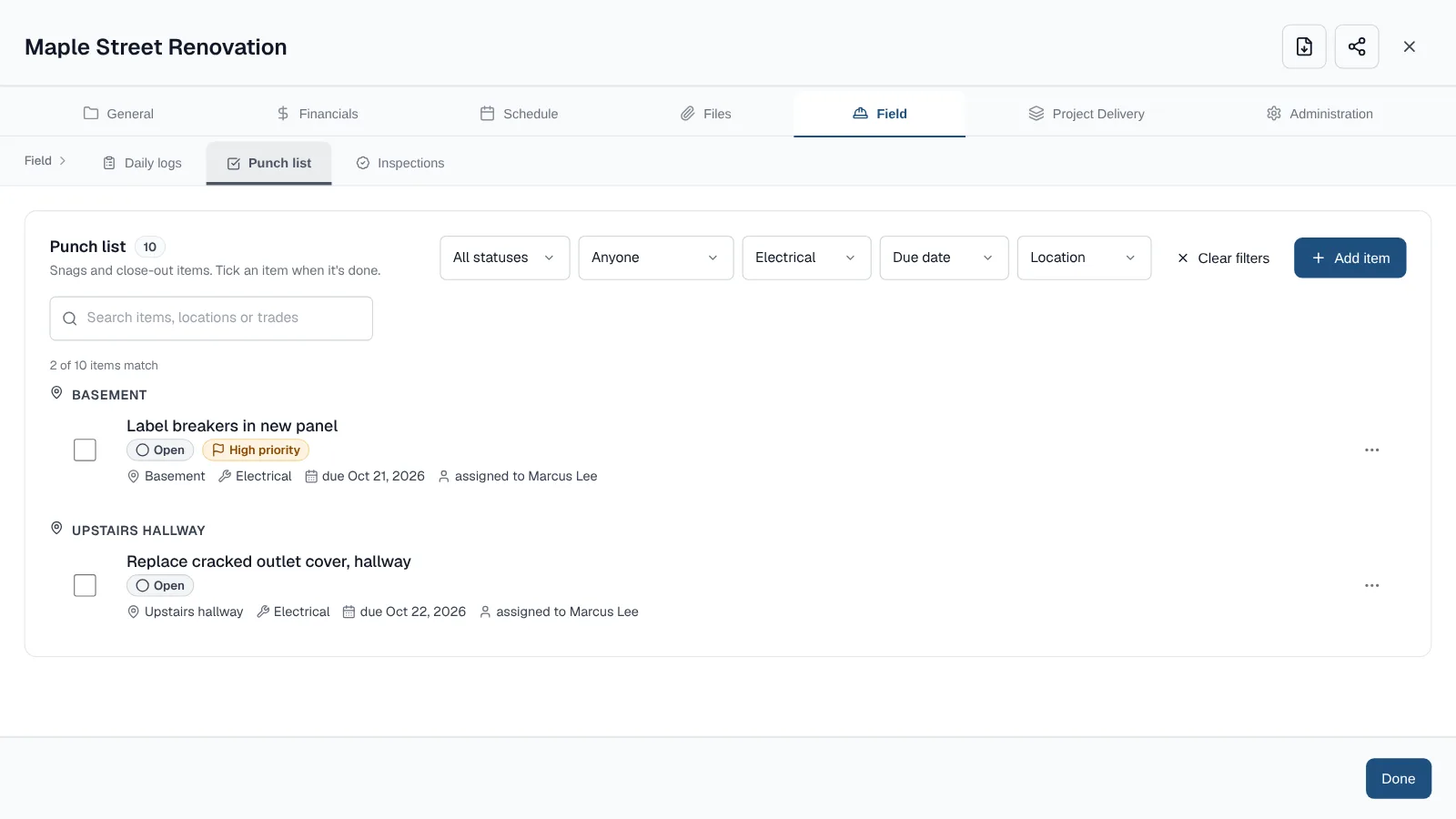
Filtered to one trade and grouped by location: ready for the walk. - Sort by due date, priority or newest.
- Group by location or trade to walk the job room by room.
- Type in the search box to find an item by its title, description, location or trade.
- The search box appears once the list has more than 8 items.
- Long lists are split into pages of 20.
- Choose Clear filters to start over. On a phone, the filters open in a Filters sheet.
Good to know
- PDF and Excel project exports include each item's priority, location and trade. The Excel file adds the description.
- A client status report shows the open punch items.
- Each export uses one of the company's 10 exports a month on Free. The Documents & Branding add-on makes them unlimited. See pricing
Frequently asked questions
Who can be assigned a punch item?
Any member of the project except guests. If someone leaves the project, their punch items become unassigned.
How do I find a punch item in a long list?
Filter by status, person or trade, group by location or trade, or search once the list has more than 8 items. Lists over 20 items are split into pages.
Can a client see the punch list?
People with view-only access can open items to read them but can't change them, and the client status report shows the open punch items.
Update log
- : Added a screenshot for each step and a 12-second demo of the filters.