Add an inspection
- Open the project and choose Field, then Inspections.
- Choose Add inspection and pick a type from the list, such as Rough-in inspection, or type your own.
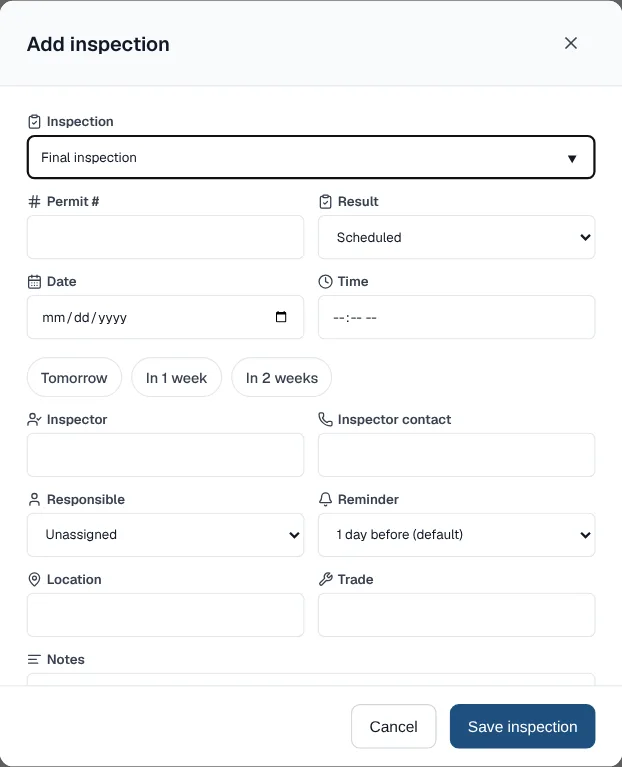
Pick a common inspection or type your own. Everything else is optional. - Fill in what you know: date and time, permit number, inspector and contact, location and trade. All of it is optional.
- Choose Save inspection.
Name who meets the inspector
- Open the inspection and pick someone in Responsible.
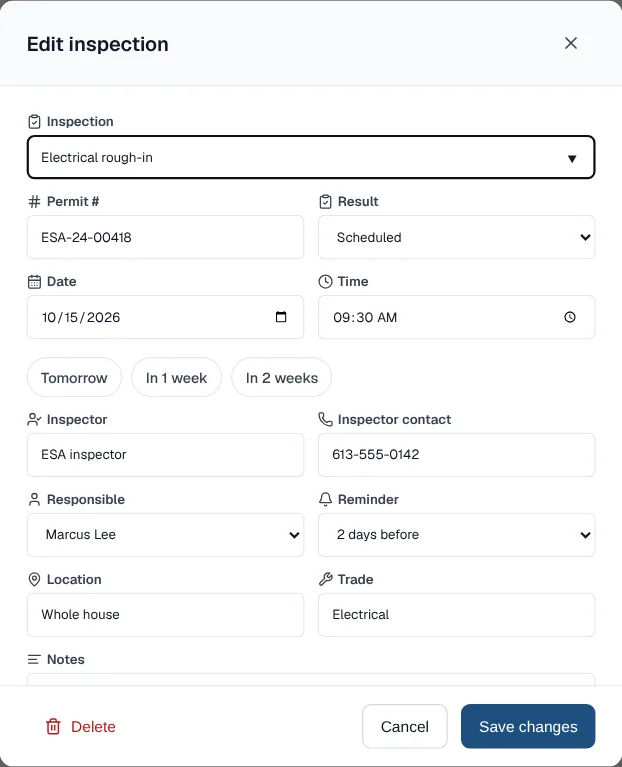
Responsible and Reminder sit side by side in the inspection window. - Set Reminder to 1, 2, 3 or 7 days before. ProtoPM starts warning about the visit that many days ahead.
- Choose Add to calendar to put the visit in your own calendar.
- The person you pick gets a message in ProtoPM and an email, unless they picked themselves.
- Responsible lists the project's team members. Guests can't be picked.
- The calendar file is an all-day event, or a one-hour event if the inspection has a time. It needs a date first.
Record the result
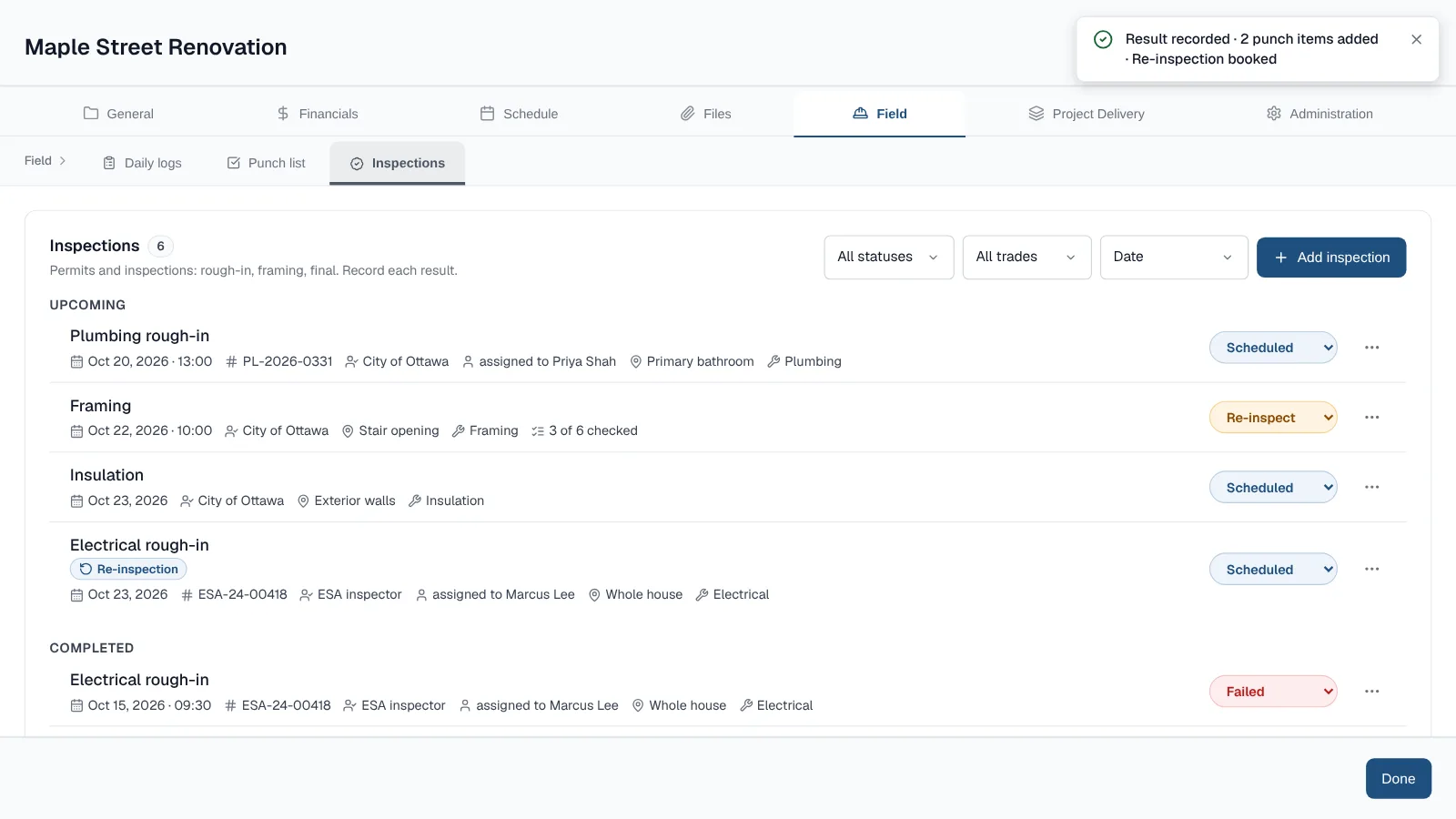
- Change the result right in the list: Scheduled, Passed, Failed or Re-inspect.
- Or choose Record result to save the result, its date and the inspector's notes in one window.
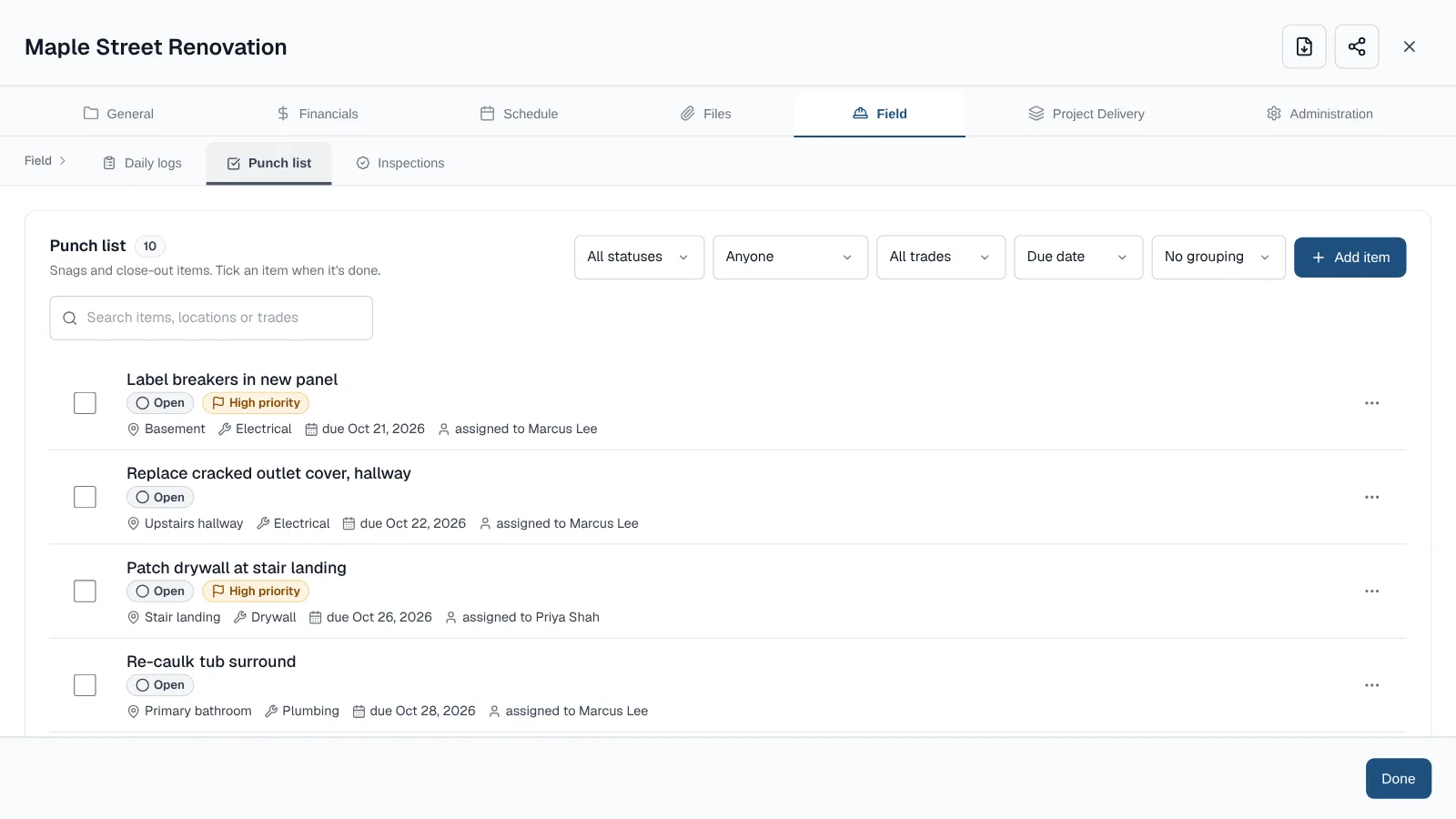
- Failed? The same window turns each fix into a punch item and books the re-inspection. Record a failed result and book the re-inspection
Check the work line by line
- Open the inspection and open Checklist.
- Choose Add checklist. You get a starter list for the inspection's type.
- Mark each line Pass, Fail or N/A, and add a note if you like. Changes save as you go.
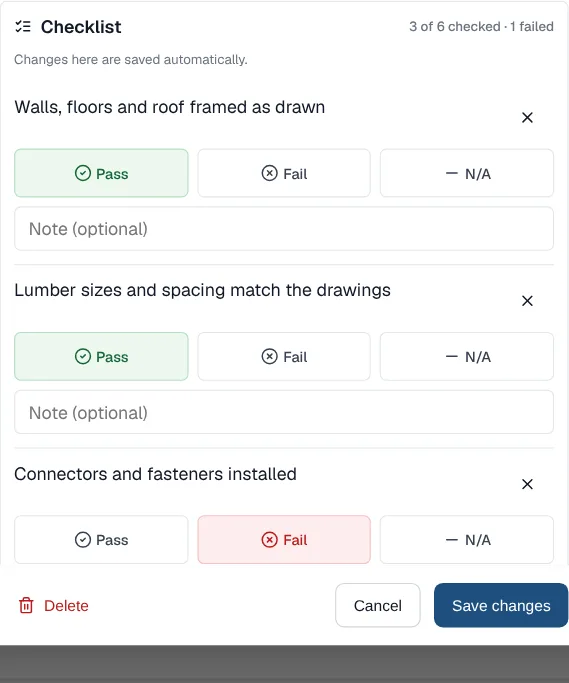
A failed line gets an Add to punch list button. - On a failed line, choose Add to punch list.
- Starter lists exist for footing, framing, underground, rough-in, insulation, final and acceptance test inspections. Any other type gets a general list.
- Nothing is added unless you choose Add checklist.
- Add your own lines, rename one or remove one. Removing asks you to confirm.
- A failed line makes one High priority punch item and never a second one.
Keep the photos and the permit card with it
- Under Files in the inspection, add up to 12 photos or PDFs, such as the permit card or a photo of the framing.
- Each file can be up to 25 MB and counts toward company storage, the same as the Files tab.
- Every file also shows in the Files tab, labelled with the inspection it came from. You can search by that label. Search and preview files
- Removing a file from the inspection deletes it from Files too, after you confirm.
See what still needs a result
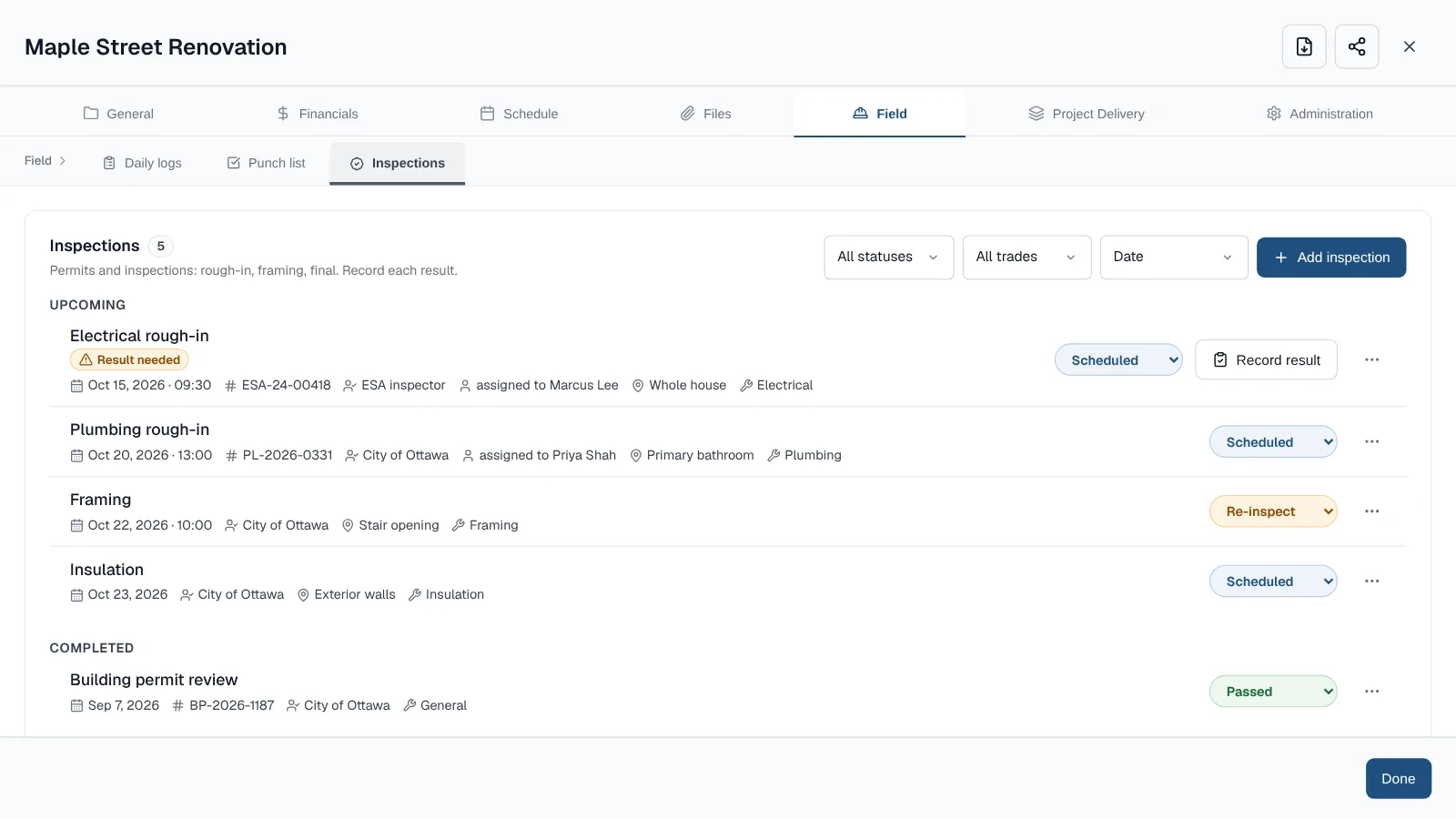
- Upcoming lists inspections waiting for a result, soonest first. Undated ones come last.
- Completed lists Passed and Failed inspections, most recent first.
- Result needed flags a waiting inspection whose day has passed, so none is left without an outcome.
- Filter by result or trade, and sort by date or newest added. A search box appears once a project has more than 8 inspections.
Starter inspections by project type
- New home build, home addition: footing, framing, rough-in, insulation and final.
- Kitchen remodel, bathroom remodel: rough-in and final.
- New construction wiring: rough-in and final. New construction plumbing: underground, rough-in and final.
- Panel upgrade, EV charger install, water heater replacement: final.
- Deck build: footing and final.
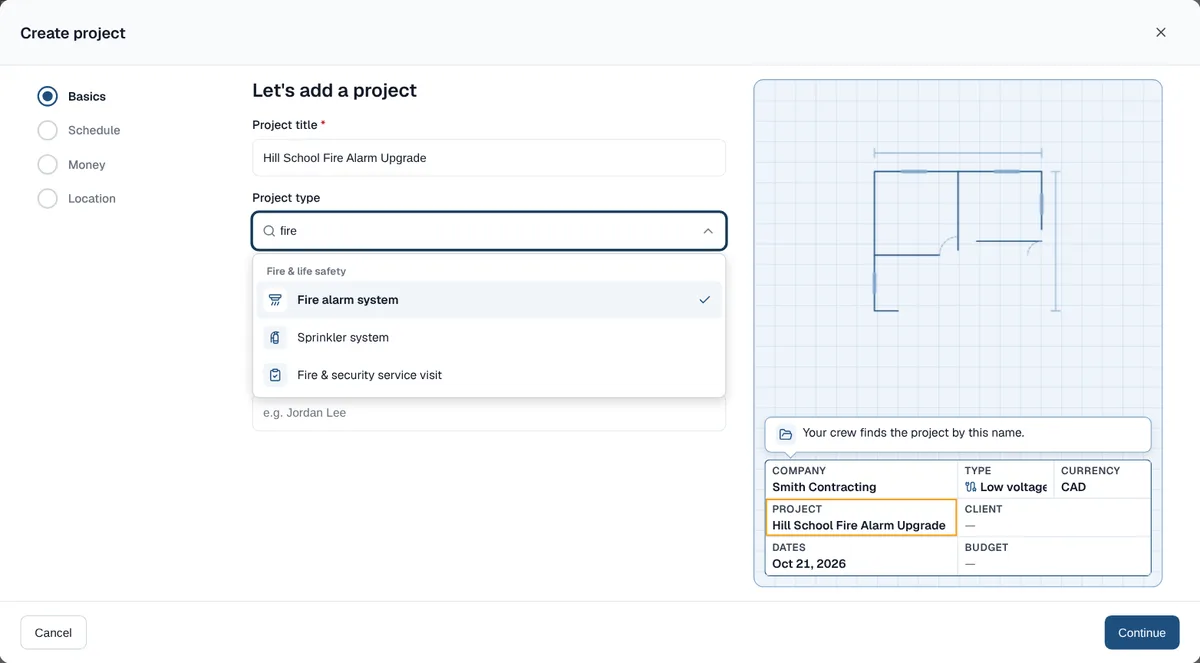
- Fire alarm system, refuge & disabled toilet alarms: acceptance test. Sprinkler system: rough-in and acceptance test. Plan a fire alarm install
- Some types, such as interior painting, start with none.
Good to know
- Starter inspections are ordinary entries. Rename, re-date or delete the ones your permit doesn't need. Deleting asks you to confirm.
- People with view-only access can see the list but not change it.
- Inspections appear in the client status report, so your client can see which have passed.
- PDF and Excel exports include each inspection's details, its checklist summary and how many files it has. Set up a project with a trade template
Frequently asked questions
What results can an inspection have?
Scheduled, Passed, Failed or Re-inspect. A failed inspection can be set to Re-inspect.
Does ProtoPM add inspections automatically?
New projects start with the inspections their type usually needs, such as footing, framing, rough-in and final for a new home. They are ordinary entries you can rename, re-date or delete.
Can my client see inspections?
Inspections appear in the client status report, so a client can see which have passed. People with view-only access can see the list but not change it.
Can I add a checklist or photos to an inspection?
Yes. Open Checklist and choose Add checklist for a starter list for the inspection's type, and add up to 12 photos or PDFs under Files. The files also appear in the Files tab, labelled with the inspection.
Update log
- : Added the acceptance test and its starter checklist for fire alarm, sprinkler and refuge jobs.
- : Rewritten step by step, with new screenshots, a 15-second demo of the checklist, and who meets the inspector and reminders.
- : Added checklists, photos and PDFs on each inspection, and the Record result window.
- : Added the edit window, the Upcoming and Completed lists, Result needed, filters, search, and the time, location, trade, inspector contact and result notes.