ProtoPM release notes, October 2026

In October, setting up a project became four short steps, with new types for fire, security and AV jobs. Deleted projects now wait 30 days in a recycle bin. Inspections got their own tab, with checklists, photos and a one-step way to handle a failure. The punch list and Files got search.

In this month

13 updates on 6 days

October 21, 2026: Fire, security and low-voltage jobs get their own project types

NewProject setupInspectionsLatest

Start fire alarm, security, Wi-Fi and AV jobs from their own plan

Fire alarm, security, network, phone and AV jobs now have their own project types. Each one lays out the steps these jobs follow, from the site survey to the certificates and handover. Before, these jobs started from the general building list.

Type the job's name and the fire alarm milestones fill in.

How to use it

  1. On Home, choose Create project.
  2. Type the project title. A title with fire alarm, wifi or voip in it picks the matching type.
  3. Or open Project type, search for fire, alarm or AV, and pick a type.
  4. Choose Continue and pick the end date. The milestones spread across your dates.
  5. To list these types first, a company owner or admin can set Trade in Settings → Companies.

Good to know

  • Fire & life safety is a new group. It holds fire alarm, sprinkler, emergency lighting, refuge and disabled toilet alarms, nurse call and service visits.
  • Security & communications adds intruder alarm, Wi-Fi network and VoIP, which means phone calls over the internet.
  • Audio visual & smart home is a new group. It holds meeting room AV, PA and voice alarm, hearing loops, digital signage and smart homes.
  • Electrical testing and BMS, the controls that run heating and lights, are new types too.
  • Fire alarm, sprinkler and refuge jobs add an Acceptance test. Add checklist gives it a six-line starter list.
  • Low voltage & systems integration is a new company type. Fire protection companies now see Fire & life safety first.
Read the how-to: Plan a fire alarm install

October 16, 2026: Failed inspections: log the fixes and book the next visit in one step

NewInspectionsPunch list

Record a failed inspection, its fixes and the re-inspection in one step

When an inspection fails, the Record result window now does three jobs at once. It saves the result, puts each fix on the punch list and books the next visit. Before, that meant three separate screens.

A failed rough-in, two fixes and the re-inspection, recorded in one window.

How to use it

  1. In Field → Inspections, choose Record result. It shows on an inspection whose day has passed, and in the … menu of any inspection still waiting for a result.
  2. Choose Failed and add what the inspector said in Result notes.
  3. Under Corrections, type each fix. Choose Add correction for the next one.
  4. Under Schedule re-inspection, pick a date or tap In 1 week.
  5. Choose Save result.

Good to know

  • Each fix becomes a High priority punch item with the inspection's location and trade. It links back to the inspection. You can add up to 20.
  • The re-inspection copies the type, permit number, inspector and contact, location, trade, person responsible and reminder.
  • Everything saves together, or nothing does. You never end up with punch items and no result.
  • The project's owners, managers and members see the failure in their notification bell.
  • Who can use it: Anyone who can edit the project. Guests can't.
Read the how-to: Record a result and book a re-inspection
NewInspectionsFilesPunch list

Check an inspection line by line and keep its photos with it

An inspection can now carry its own checklist and up to 12 photos or PDFs. The permit card, the site photos and each line's result stay on the inspection. You no longer have to piece them together from a phone and a clipboard.

Add a checklist, mark each line, and send a failed line to the punch list.

How to use it

  1. Open an inspection from Field → Inspections.
  2. Open Checklist and choose Add checklist. You get a starter list for the inspection's type.
  3. Mark each line Pass, Fail or N/A. Changes save as you go.
  4. On a failed line, choose Add to punch list.
  5. Under Files, add the permit card or photos of the work.

Good to know

  • Starter lists exist for footing, framing, underground, rough-in, insulation and final inspections. Any other type gets a general list.
  • A failed line makes one High priority punch item and never a second one. The punch item says From inspection.
  • Files follow the Files tab rules: up to 25 MB each, and they count toward company storage.
  • Each file also shows in the Files tab, labelled with the inspection it came from. You can search by that label.
  • PDF and Excel exports show each checklist's summary and how many files are attached.
  • Who can use it: Anyone who can edit the project. Guests can't.
Read the how-to: Track permits and inspections
NewInspections

Name who meets the inspector and get warned before the day

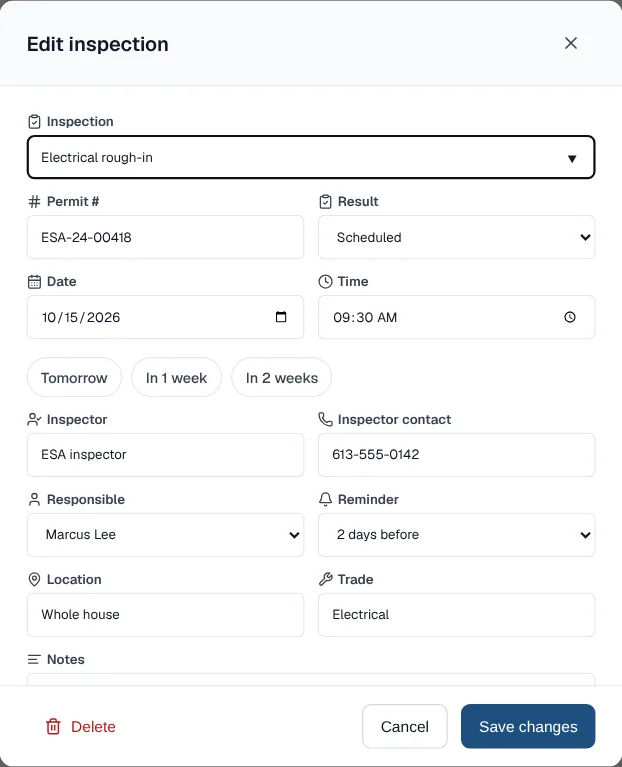
Each inspection now has a Responsible person and a Reminder. The person you pick gets a message in ProtoPM and an email. Before, an inspection had a date but no owner, so it was easy to miss.

Edit inspection window for an electrical rough-in with Responsible set to Marcus Lee and Reminder set to 2 days before
Responsible and Reminder sit side by side in the inspection window.

How to use it

  1. Open an inspection and pick someone in Responsible.
  2. Set Reminder to 1, 2, 3 or 7 days before. ProtoPM starts warning about it that many days ahead.
  3. Choose Add to calendar to download the inspection as a calendar file.

Good to know

  • Responsible lists the project's team members. Guests can't be picked. You get no email when you pick yourself.
  • Reminder starts at 1 day before unless you change it.
  • The calendar file is an all-day event, or a one-hour event if the inspection has a time. The inspection needs a date first.
  • Who can use it: Team members only. Guests can't use Add to calendar.
Read the how-to: Record a result and book a re-inspection

October 15, 2026: Punch list, inspections and files: find anything in seconds

ImprovedInspections

See at a glance which inspections still need a result

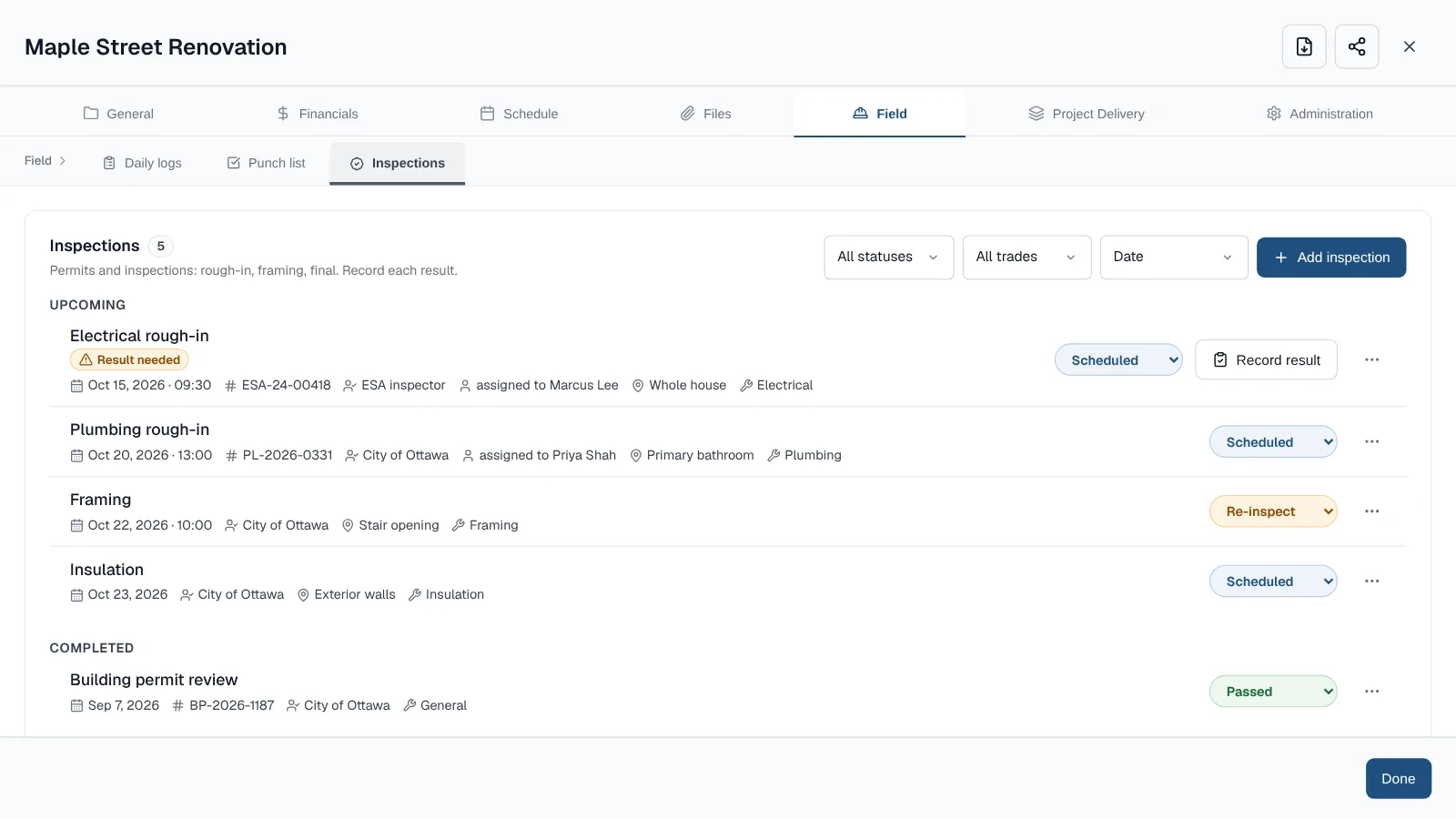
Inspections now sit in two lists, Upcoming and Completed. An inspection whose day has passed with no result gets a Result needed flag. Before, a missed result looked the same as a visit still to come.

Inspections list with Upcoming and Completed groups, an electrical rough-in marked Result needed, and permit numbers, inspectors, locations and trades on each row
Upcoming first, Completed below. Result needed flags a visit with no outcome yet.

How to use it

  1. Open Field → Inspections to see Upcoming at the top and Completed below.
  2. Click an inspection to open it and change any detail in one window.
  3. Filter by result or trade, and sort by date or by newest added.

Good to know

  • Upcoming shows inspections waiting for a result, soonest first. Completed shows Passed and Failed ones, newest first.
  • Each inspection now has a time, location, trade, inspector contact and result notes.
  • A search box appears once a project has more than 8 inspections. It looks in the type, permit number, inspector, location and trade.
  • PDF and Excel exports include the new details.
Read the how-to: Track permits and inspections
NewFiles

Find, preview and upload project files faster

The Files tab can now search, sort and preview photos and PDFs on the same screen. You can also add up to 20 files at once. Before, finding one permit meant scrolling the list and opening files one by one.

Search, preview a photo, and add several files at once.

How to use it

  1. In the Files tab, type a file name or a person's name in the search box.
  2. Click a photo or PDF to preview it without downloading.
  3. Choose Add file and drag in up to 20 files. Each one shows its size and whether it is ready.
  4. Choose Upload.

Good to know

  • Sort by date, name, size or who uploaded. Each row shows the size and who uploaded it.
  • Each file can be up to 25 MB. A file that can't be uploaded says why.
  • The search box appears once a project has more than 8 files.
Read the how-to: Search, preview and upload files

October 14, 2026: Inspections get their own tab in Field

NewInspections

Track permits and inspections in the Field tab

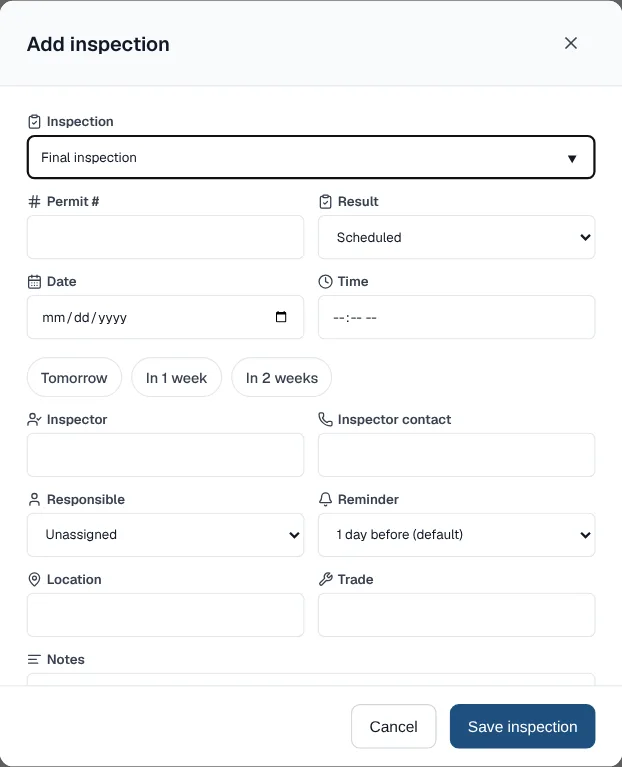
The Field tab now has an Inspections tab. Each inspection keeps its type, permit number, date and inspector, and the whole crew sees the result. Before, ProtoPM had no place for inspections.

Add inspection window with an inspection type picker, permit number, result, date and time with quick picks, inspector and contact, responsible person, reminder, location and trade
Pick a common inspection or type your own. Everything else is optional.

How to use it

  1. Open a project and choose Field → Inspections.
  2. Choose Add inspection and pick a type, such as Rough-in inspection, or type your own.
  3. Add the date and permit number if you have them, then choose Save inspection.
  4. Set the result from the list: Scheduled, Passed, Failed or Re-inspect.

Good to know

  • New projects start with the inspections their type usually needs. A new home build starts with footing, framing, rough-in, insulation and final.
  • Starter inspections are ordinary entries. Rename, re-date or delete any of them.
Read the how-to: Track permits and inspections

October 11, 2026: A 3-week look-ahead on the Schedule tab

NewSchedule

Plan the next three weeks and hand the crew a PDF

The Schedule tab has a new 3 weeks view. It lists the open milestones (key dates in your schedule) for this week and the next two. Anything past due sits at the top, so it can't slip out of sight.

Switch to 3 weeks, narrow it to one person, then download the PDF.

How to use it

  1. Open the Schedule tab and choose 3 weeks.
  2. Use Show for to see one person's milestones.
  3. Choose Download PDF to hand the list to the crew.

Good to know

  • Finished milestones and work that starts after the third week are left out.
  • Each PDF counts as one of your company's 10 exports a month on the Free plan. See pricing
Read the how-to: Use the 3-week look-ahead
NewSchedule

Give each milestone to someone and record why it ran late

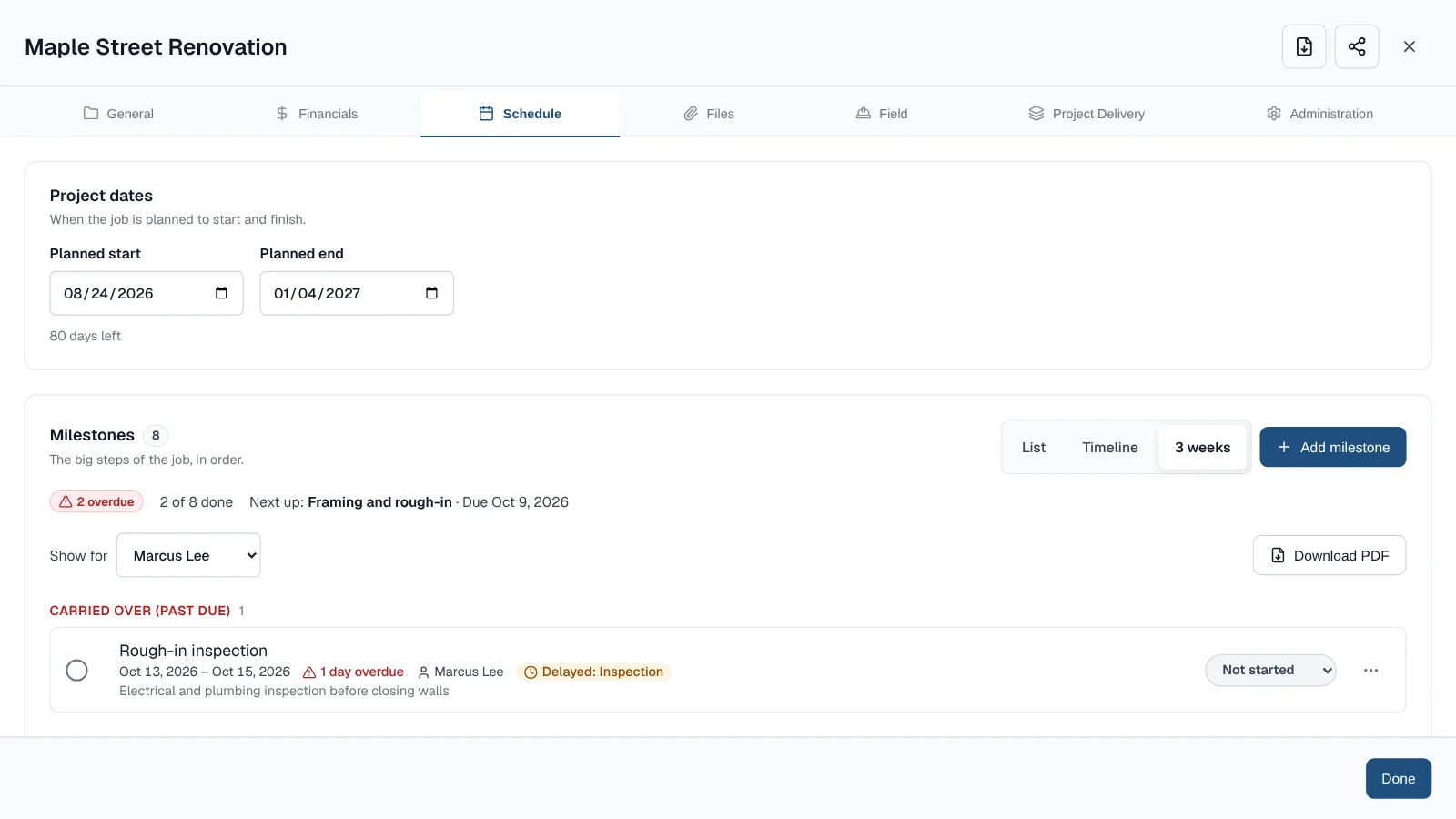
Each milestone now has an Assigned to setting and a delay reason. The person you pick, team member or subcontractor, gets a notification and an email. When a date slips, the reason stays with the milestone so everyone sees it.

3 weeks view narrowed to one person with Show for, listing a past-due rough-in inspection with the person it is given to and a Delayed: Inspection reason
Each milestone shows who it is for and, if it ran late, why.

How to use it

  1. On the Schedule tab, open a milestone.
  2. Pick a team member or a project guest in Assigned to.
  3. If it ran late, choose Add delay reason and pick the cause.

Good to know

  • Delay reasons are materials, weather, inspection, labor, design change, owner decision or other. You can add a note.
  • The reason shows in the 3 weeks view and in its PDF. It stays after the work is done.
  • Project guests see a Your dates tab with only the milestones given to them. They can't change anything.
Read the how-to: Use the 3-week look-ahead

October 9, 2026: Faster project setup, a recycle bin and client reports

NewProject setup

Set up a project in four short steps

Create project now asks one thing at a time: basics, schedule, money and site. Pick a project type and the job starts with milestones, a punch list and inspections. Before, a new project started empty.

The four steps of Create project, from title to site.

How to use it

  1. On Home, choose Create project.
  2. Basics: type a title and pick a project type, such as Panel upgrade.
  3. Schedule: pick an end date, or tap +3 months, +6 months or +1 year.
  4. Money: add a budget if you like. This step is optional.
  5. Location: search the address, drop a pin, or choose I'll add the site later. Then choose Create project.

Good to know

  • A project type spreads six milestones across your dates and adds a starter punch list. Trades that need inspections get those too.
  • Everything a template adds is ordinary data. Change or delete any of it.
  • Create project is there from the Schedule step on, so the last two steps can wait.
Read the how-to: Set up a project in minutes
NewProjectsYour data

Restore a deleted project for 30 days

Deleting a project now moves it to a recycle bin instead of erasing it. Undo it right away, or restore it any time in the next 30 days. A slip of the finger no longer costs you a job's records.

Delete a project, then bring it back with Undo.

How to use it

  1. In the project, open Administration → Overview and choose Delete project.
  2. Confirm with Move to recycle bin. An Undo message appears.
  3. Later, open Recycle bin from the Home sidebar and choose Restore.

Good to know

  • A restored project comes back with its schedule, field logs, files and invoices.
  • To delete it for good, choose Delete forever in the recycle bin and type the project name.
  • Files in the recycle bin still count toward company storage.
  • Who can use it: Project owners, and company owners and admins
Read the how-to: Restore a deleted project
NewReports and exportsPrivacy

Send your client a status report that leaves out the money

Export project can now make a Client status report. It is a PDF with schedule health, milestones, open punch items and changes waiting for a decision. It never includes the budget, invoices, risks or team contacts.

Export project, then choose Client status report.

How to use it

  1. Open the project and choose Export project at the top.
  2. Choose Client status report, then Export.
  3. Send the PDF to your client.

Good to know

  • Need everything instead? The same window exports the whole project, or only the sections you pick, as a PDF or an Excel file.
  • Each export counts as one of your company's 10 exports a month on the Free plan. See pricing
  • Who can use it: Not available to guests
Read the how-to: Send a client status report

Try it on your next job

It's free to run projects in ProtoPM.