Find a file
- Open the project and choose the Files tab.
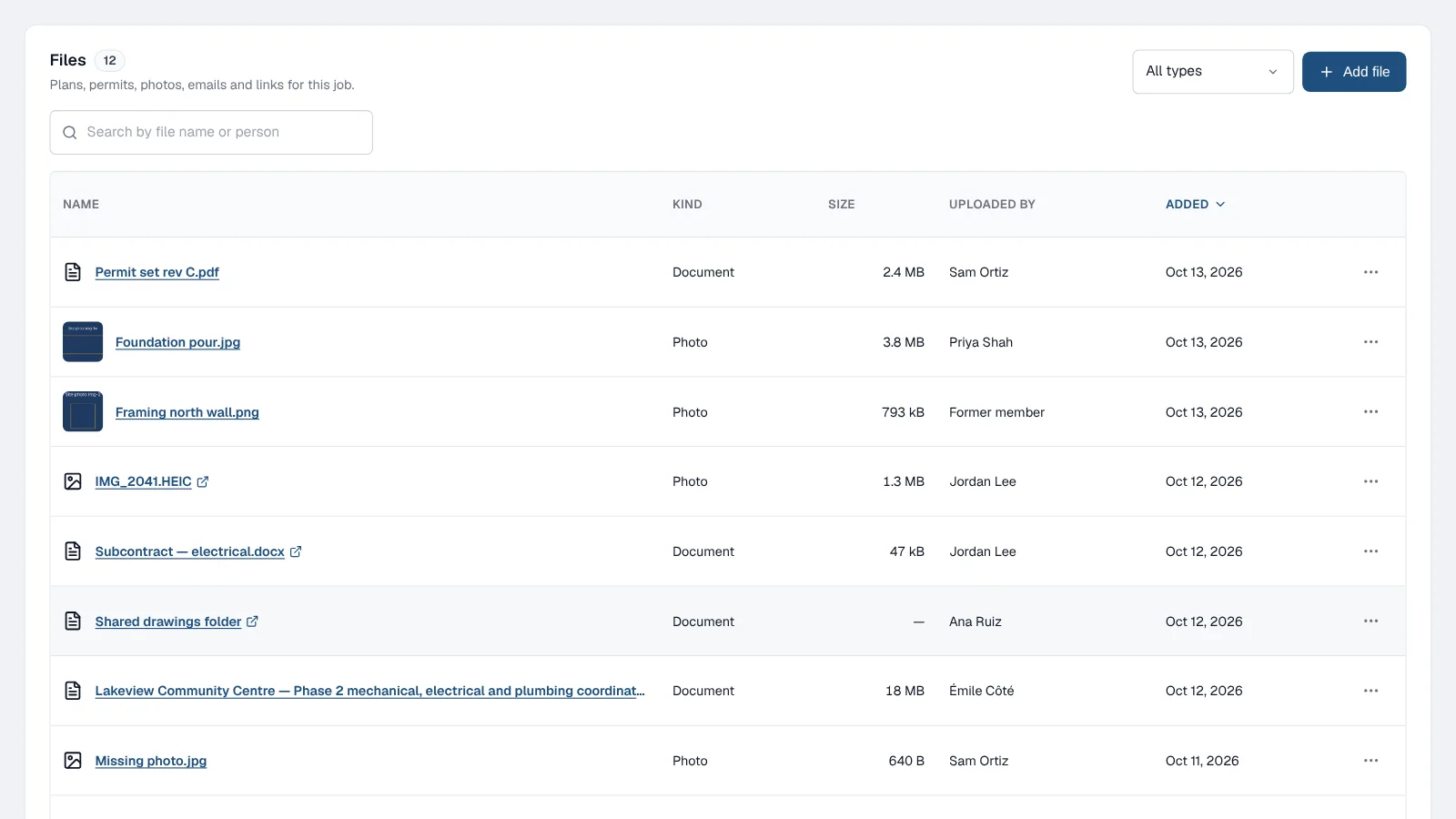
Every row shows the size and who uploaded it. - Type in the search box. It looks in file names and in the name of the person who uploaded each file.
- Narrow it with All types, Photos or Documents.
- Sort by newest, oldest, name, size or who uploaded, or click a column heading.
- The search box appears once a project has more than 8 files.
- Each row shows the size and who uploaded it. Files from someone who has left the project show Former member.
- Long lists are split into pages of 20 files.
Preview without downloading
- Click a photo or PDF. It opens in a viewer on the same screen.
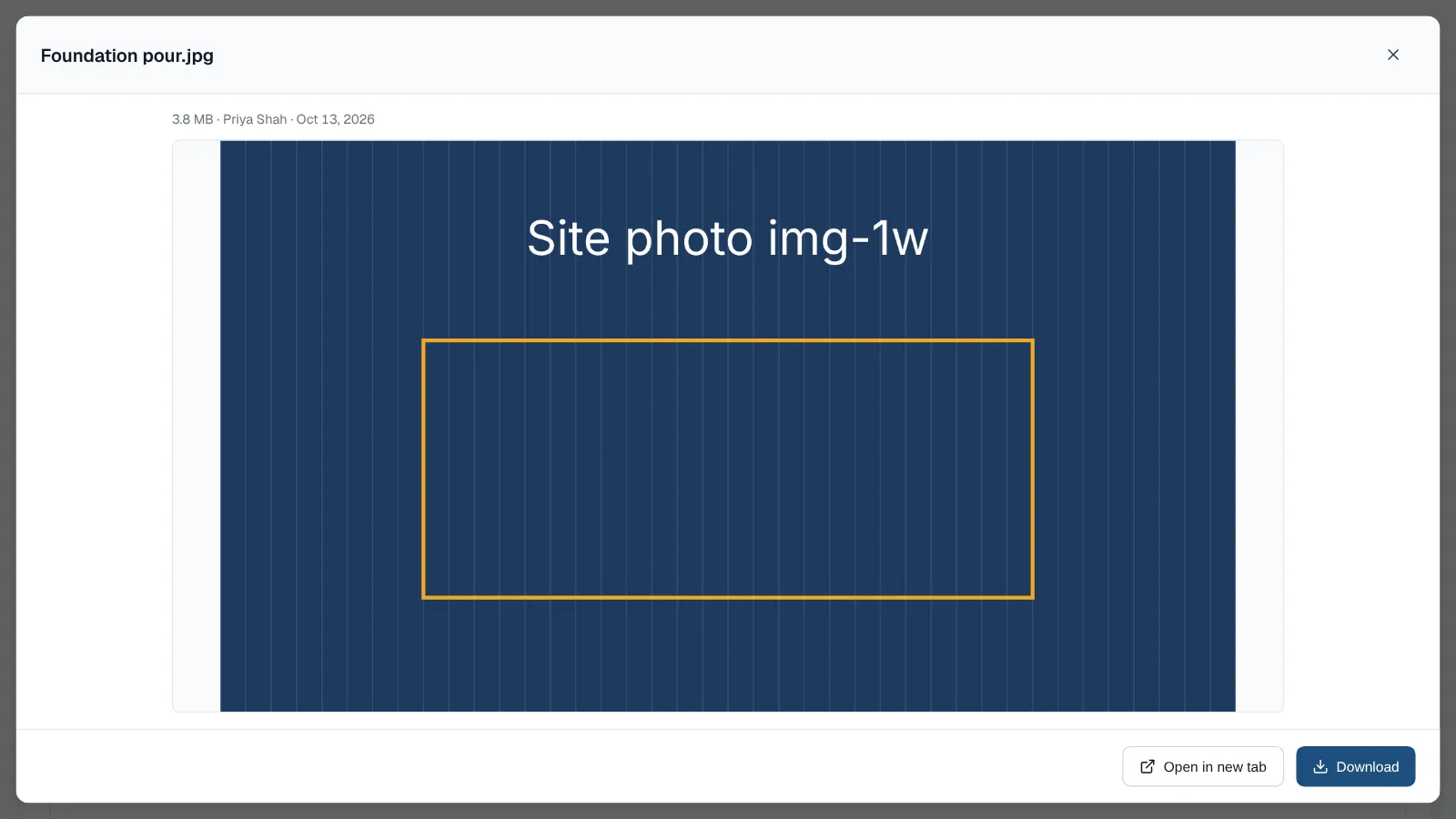
Photos and PDFs open on the same screen. - Choose Open in new tab for a bigger view, or Download to save it under its real name.
- Close the viewer to get straight back to the list.
- Photos (JPEG, PNG, WebP and GIF) and PDFs preview. Word, Excel and other files open or download as before.
- On some Android phones, a PDF opens in your PDF app instead.
Upload many files at once
- Open the project, choose the Files tab and then Add file.
- Drag files into the window, or choose Choose files. Pick up to 20 at a time, up to 25 MB each.
- Check the list. Each file shows its size and whether it's ready. Remove one with the X.
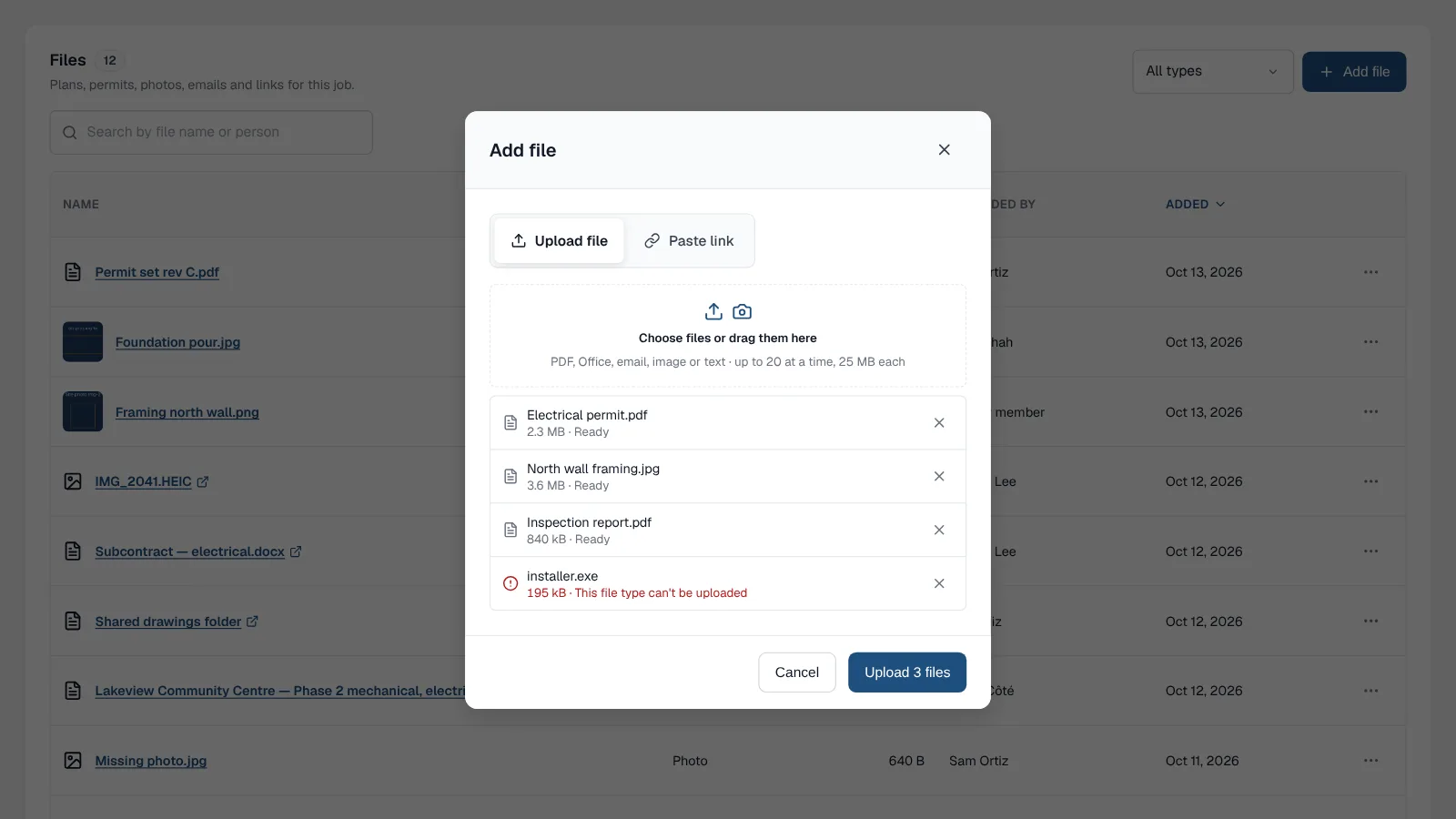
Each file shows its size and whether it's ready. One that can't be uploaded says why. - Choose Upload. Files go up one at a time with progress shown, and you get a summary at the end.
Good to know
- PDF, Office, email, image and text files are accepted.
- A file is skipped if it is over 25 MB or isn't an accepted type, and the list says why.
- If company storage fills up during a batch, the remaining files aren't uploaded and the list says so.
- Free includes 2 GB of storage per company. Storage packs start at $5 CAD a month. See what's free and what costs extra
Frequently asked questions
How many files can I upload at once?
Up to 20 files at a time, each up to 25 MB. A file that is too large or not an accepted type is skipped, and the list says why.
Which files can I preview without downloading?
Photos (JPEG, PNG, WebP and GIF) and PDFs open in a viewer on the same screen. Other types, such as Word and Excel files, open or download as before.
How much file storage is free?
Free includes 2 GB of storage per company. Storage packs start at $5 CAD a month.
Update log
- : Rewritten step by step, with a 13-second demo. Corrected when the search box appears: once a project has more than 8 files.