Record a failed inspection
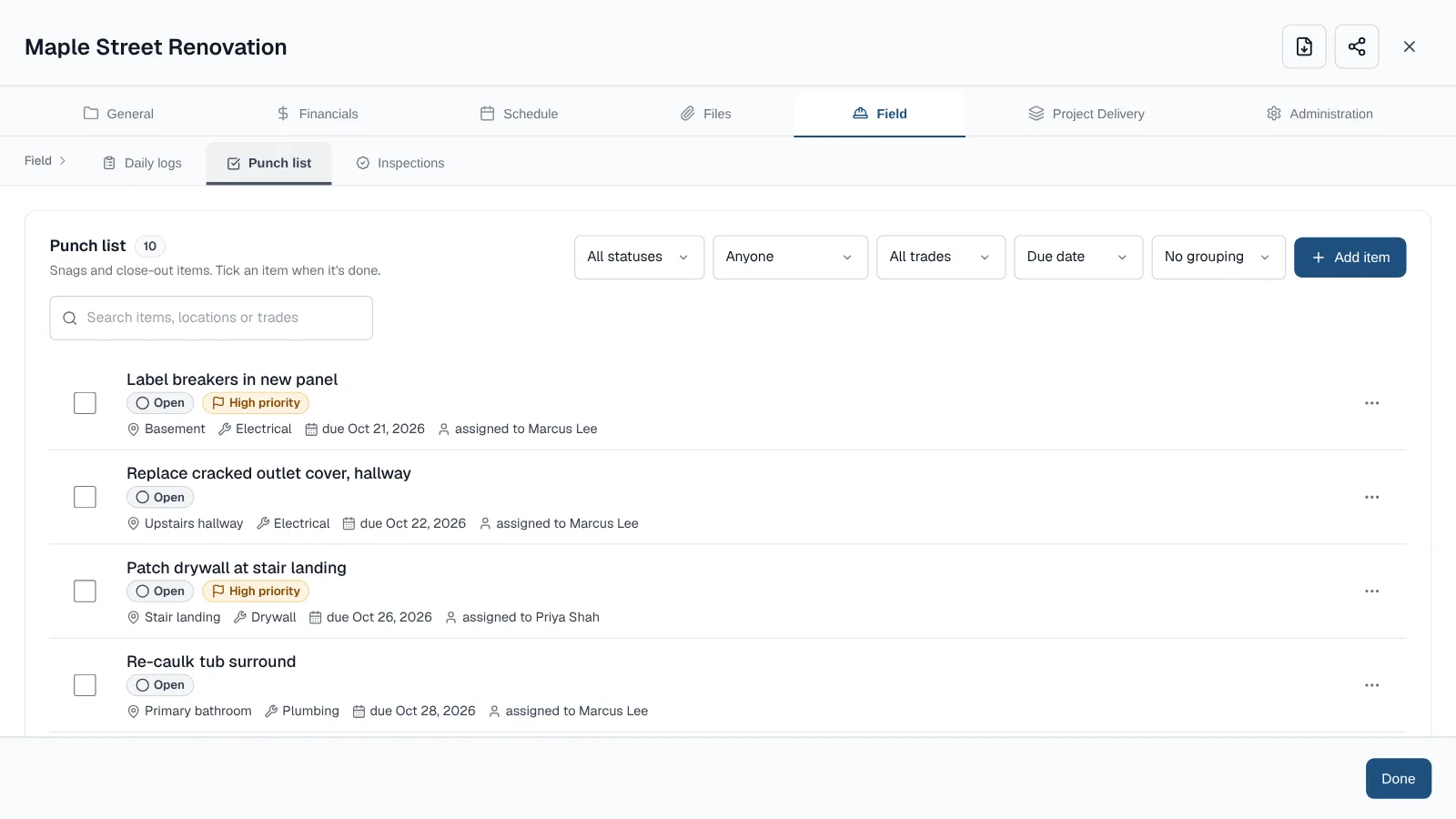
- Open the project and choose Field, then Inspections.
- Choose Record result. It shows on any inspection whose day has passed, and in the … menu of one still waiting for a result.
- Choose Failed. The result date starts as today. Add what the inspector said in Result notes.
- Under Corrections, type the first fix. Choose Add correction for each one after it, up to 20.
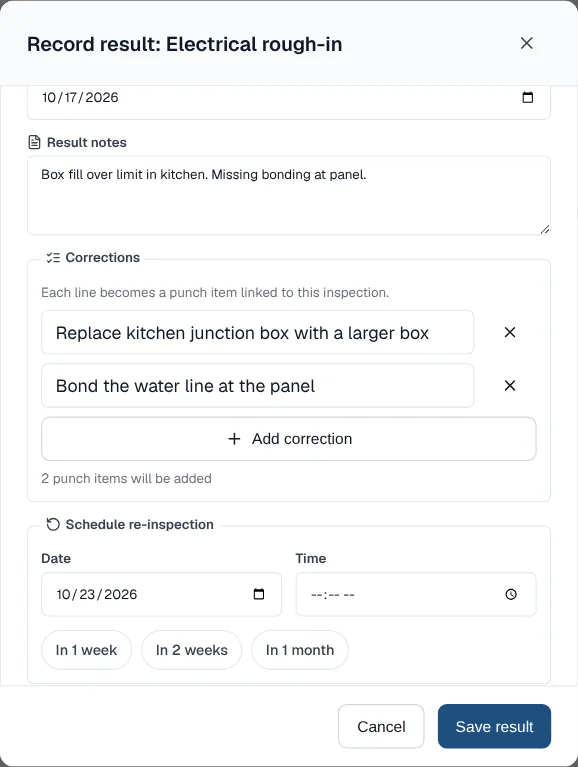
Two corrections become two punch items. The re-inspection gets its own date. - Under Schedule re-inspection, pick a date, or tap In 1 week, In 2 weeks or In 1 month.
- Choose Save result. The list shows the failed inspection and the new re-inspection.
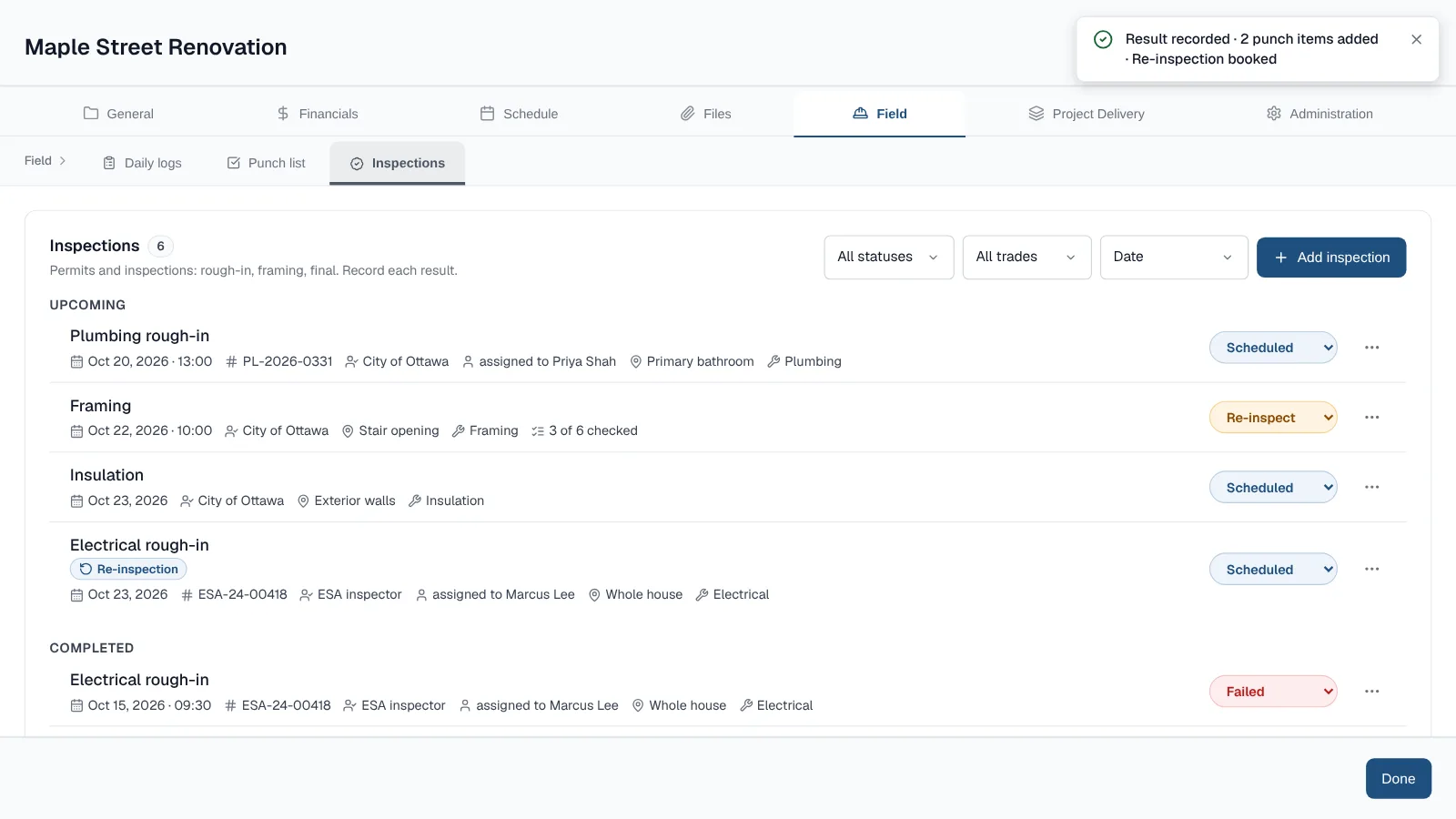
Saved: the failure is under Completed and the re-inspection is booked.
What a failure creates
- Each correction becomes a High priority punch item with the inspection's location and trade. It shows From inspection and links back.
- The re-inspection is a new Scheduled inspection. It copies the type, permit number, inspector and contact, location, trade, person responsible and reminder.
- Both inspections link to each other and show a Re-inspection badge.
- Everything saves together, or nothing does. You never end up with punch items and no result.
- The project's owners, managers and members see the failure in their notification bell.
Passed? It's one step
Choose Record result, keep Passed, check the date and choose Save result. The inspection moves to Completed.
Name who's responsible and get reminded
- Open the inspection and pick someone in Responsible.
- Set Reminder to 1, 2, 3 or 7 days before. It starts at 1 day.
- Choose Add to calendar to download the visit as a calendar file.
- Responsible lists the project's team members, never guests. The person gets a message in ProtoPM and an email, unless they picked themselves.
- The calendar file is an all-day event, or a one-hour event when the inspection has a time. It needs a date, and guests can't use it.
Good to know
- Recording a result needs edit access to the project, so guests can't.
- The one-tap result in the list still works if you only need to change the status.
- Deleting an inspection keeps the punch items and re-inspections it created.
- For checklists and photos on an inspection, see track permits and inspections.
Frequently asked questions
What happens to the corrections when I record a failed inspection?
Each correction becomes a High priority punch item with the inspection's location and trade, linked back to the inspection. You can add up to 20 at once.
Can I book the re-inspection at the same time?
Yes. In the same window, pick a date under Schedule re-inspection, or tap In 1 week. ProtoPM creates a new Scheduled inspection with the same type, permit, inspector, location, trade, person responsible and reminder.
Who gets notified?
The person responsible gets a message in ProtoPM and an email when they're picked, unless they picked themselves. A recorded failure shows in the notification bell for the project's owners, managers and members.
How early can I be reminded?
1, 2, 3 or 7 days before the inspection. The default is 1 day.
Update log
- : Corrected how to book the re-inspection: pick a date under Schedule re-inspection. Added a screenshot for each step and a 25-second demo.