Move to the next phase
- Open the project. General shows the phases: Planning, Design, Construction, Closeout and Closed.
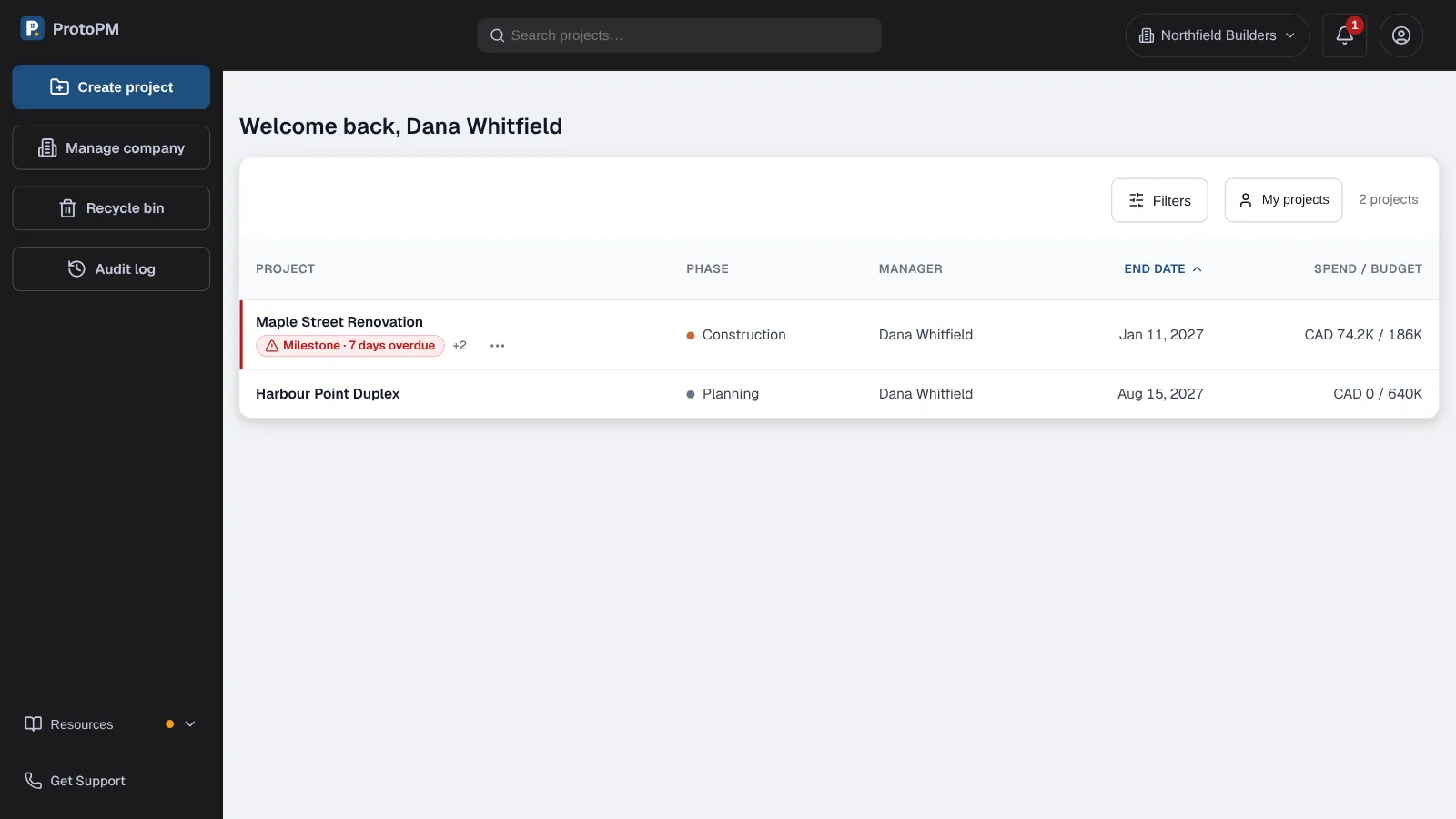
- Choose the Move to button beside the steps, such as Move to Closeout. Its number counts what is still open.
- Read Finish these first. It names each open item.
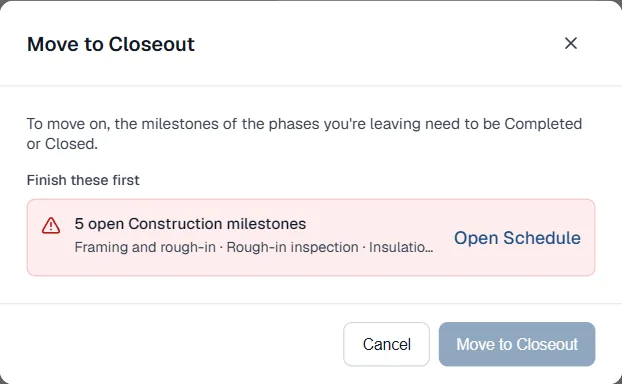
The window names what is still open and keeps the move off until it's done. - Choose an Open link, such as Open Schedule, and finish the work.
- Come back and choose Move to again. The button works once nothing is left.
- To move on, the milestones of the phases you're leaving must be Completed or Closed. Skipped phases count too.
- Worth checking lists things that don't stop the move, such as unpaid invoices or no budget yet.
- Moving back is never blocked. Milestones, punch items and records stay as they are.
- The team sees the move in their notification bell. Guests don't, and nothing is emailed.
Give each milestone a phase
- In Schedule, open a milestone or choose Add milestone.
- Pick its Phase: Planning, Design, Construction or Closeout. No phase is also allowed.
- Use the strip above the list to see one phase. It shows how many are done, such as Construction 1/6.
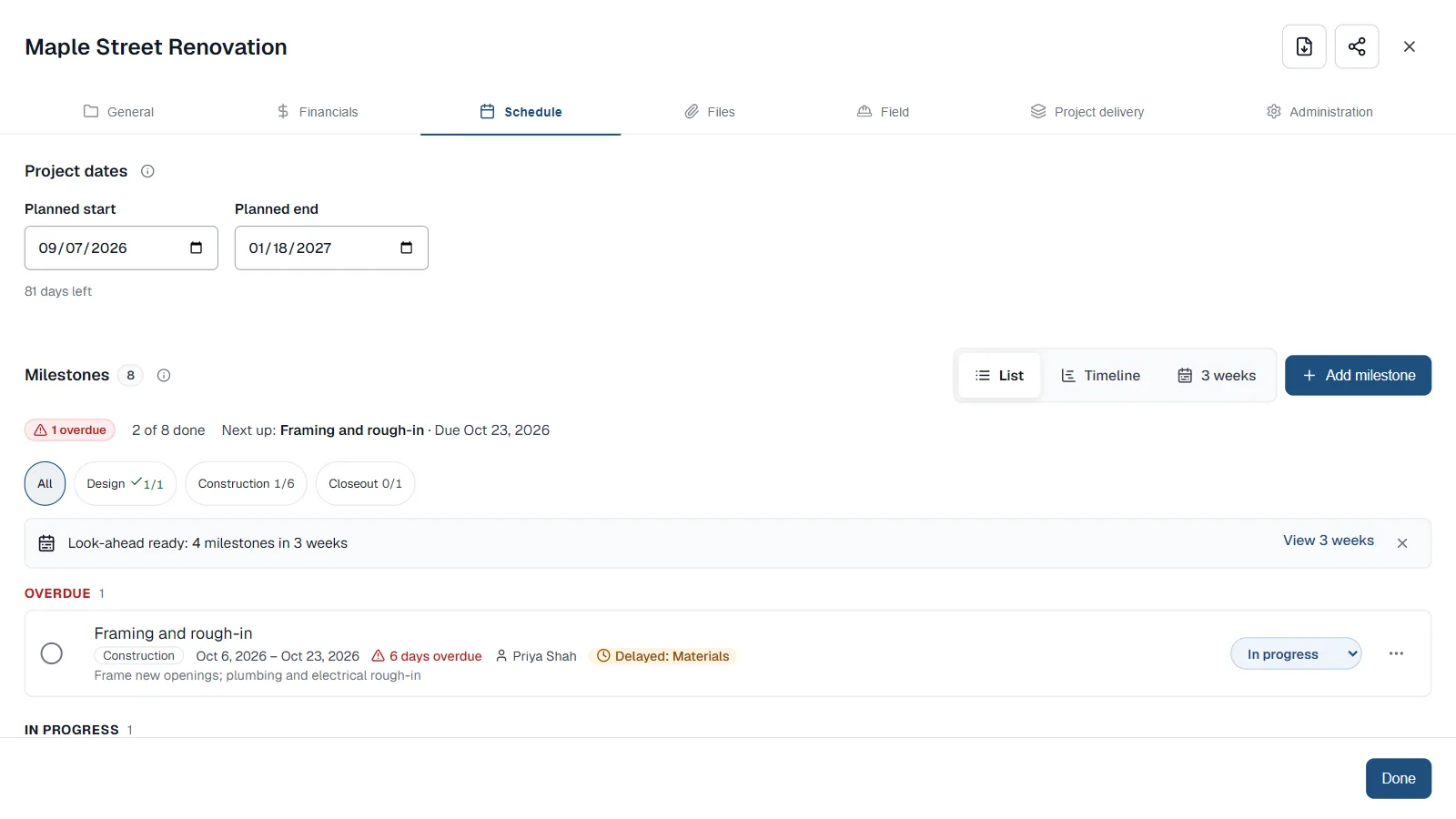
Each milestone can belong to a phase. The strip counts what is done in each one.
- New projects started from a project type already give their milestones a phase.
- Milestones you made before October 23 have no phase. They only count when the project closes.
- When you finish the last milestone of the current phase, ProtoPM offers the move right away. Choose Not now to stay.
Close the project
- Move the project to Closeout.
- In General, read the Closeout checklist. It lists what still needs doing, each with a link.
- Fix the open punch items and record a result for each inspection.
- Choose Close project.
- A project can close once every milestone is done, every punch item is fixed and every inspection has a result.
- Unpaid invoices, open change requests, no lessons learned and costs over budget are shown, but don't stop you.
- A closed project stays fully editable. A banner says Closed. Deadline alerts are off.
- To reopen it, choose Change phase in that banner.
Good to know
- Owners, managers and members can change the phase. Viewers and guests can't.
- Projects that were already past a phase keep their phase. Nothing is checked until you move them again.
- Phases are free on every plan. See pricing
Frequently asked questions
What stops a project from closing?
An open milestone, an open punch item, or an inspection still waiting for a result. Invoices, change requests and lessons learned are only shown as things worth checking.
Can I move a project back to an earlier phase?
Yes. Moving back and reopening a closed project are never blocked, and nothing is deleted.
Do I have to give every milestone a phase?
No. A milestone with no phase only counts when the project closes. Give milestones a phase if you want each step checked on the way.