See what is late on Home
- Open Home.
- Look for a badge under a project's name, such as Milestone · 7 days overdue.
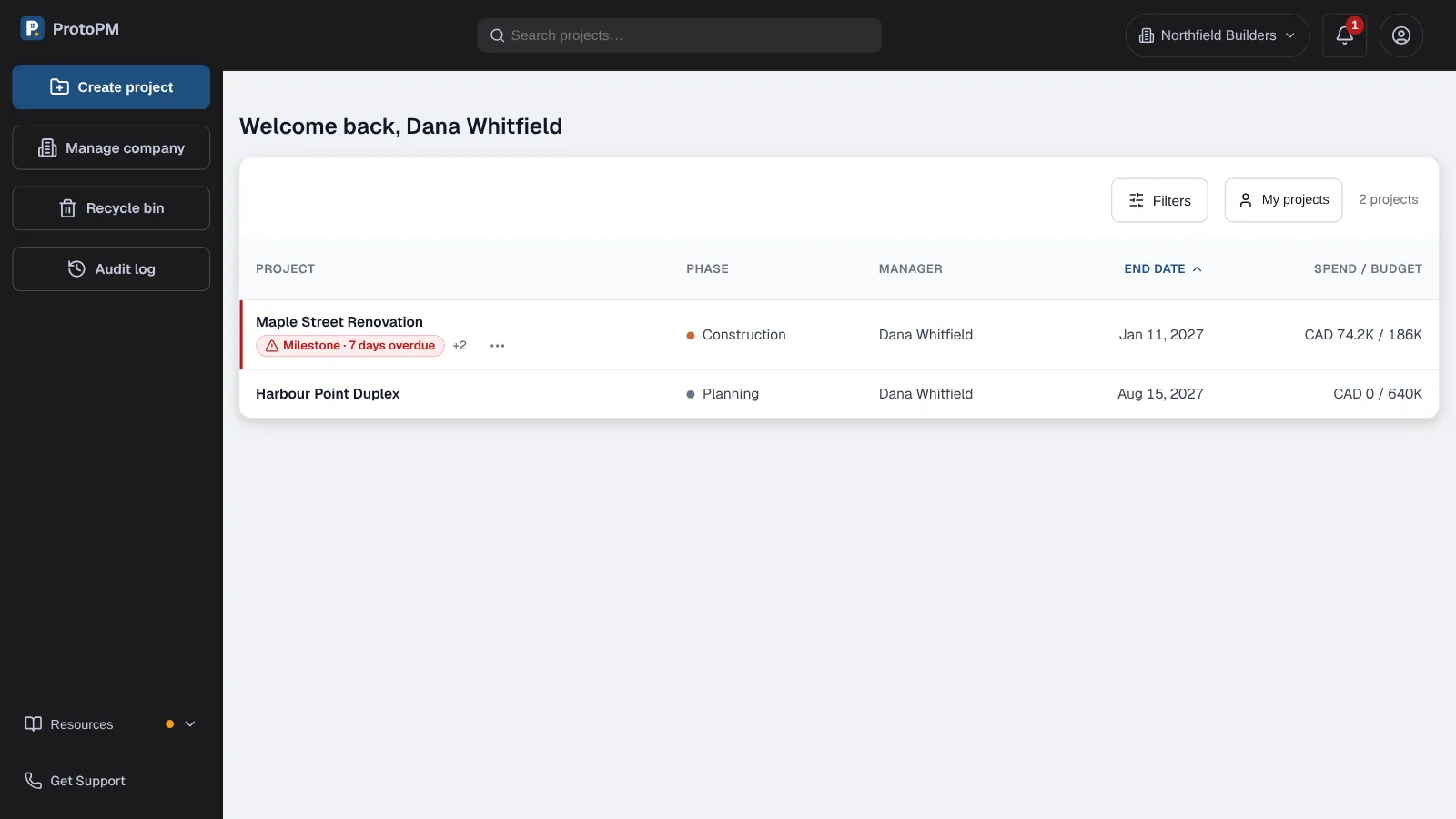
A project with late work shows a badge and moves to the top. - Choose … next to the badge to list each item.
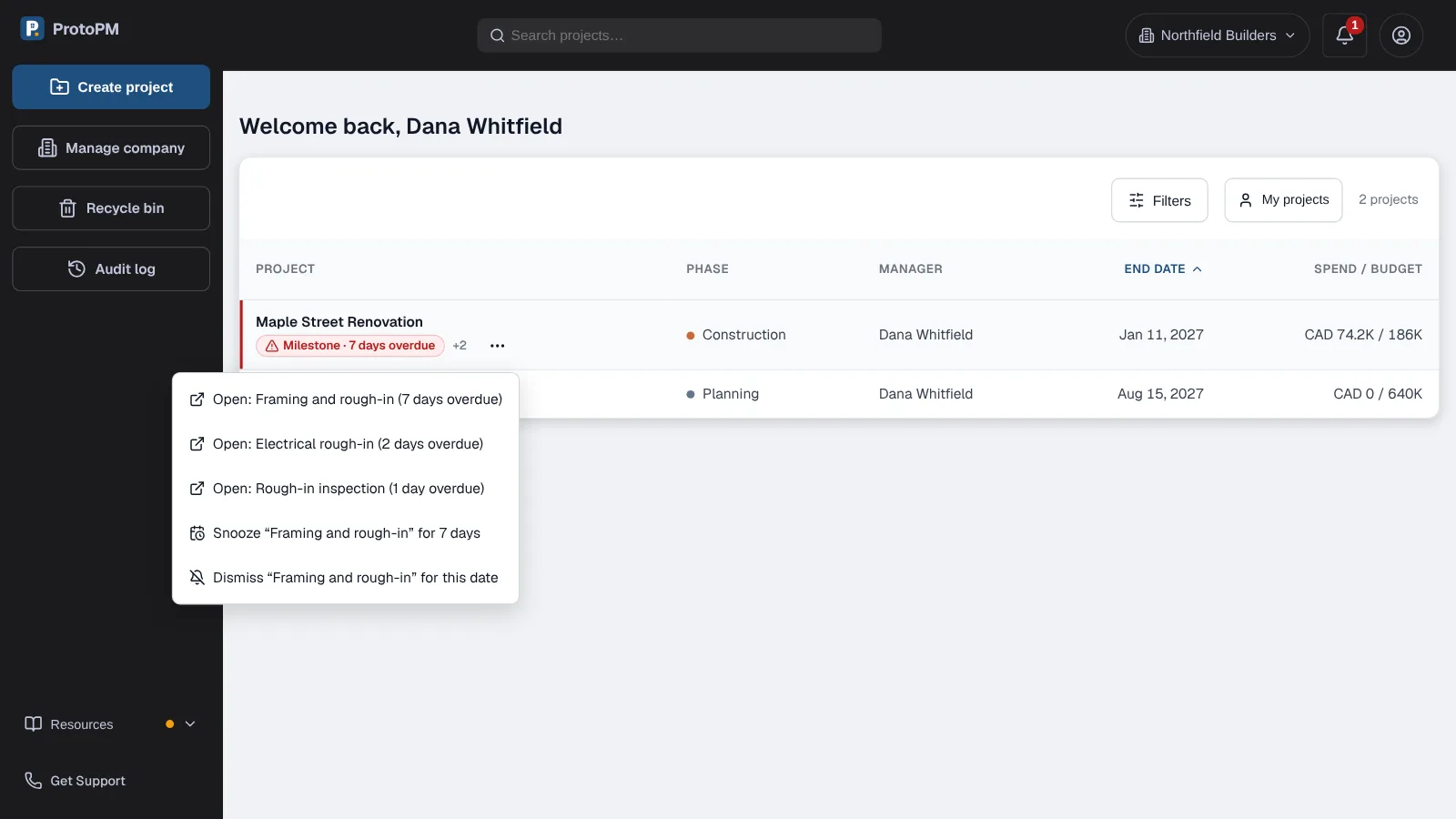
Open any late item, or snooze or dismiss the reminder. - Pick an item to open the project on the tab where it lives.
- To list only these projects, open Filters and tick Needs attention.
- Projects with overdue items show a red badge and move to the top of the list.
- Items coming up soon get a quieter badge, such as Due in 6 days.
- +2 next to the badge means two more items.
Check the bell
- Choose the bell at the top of the screen.
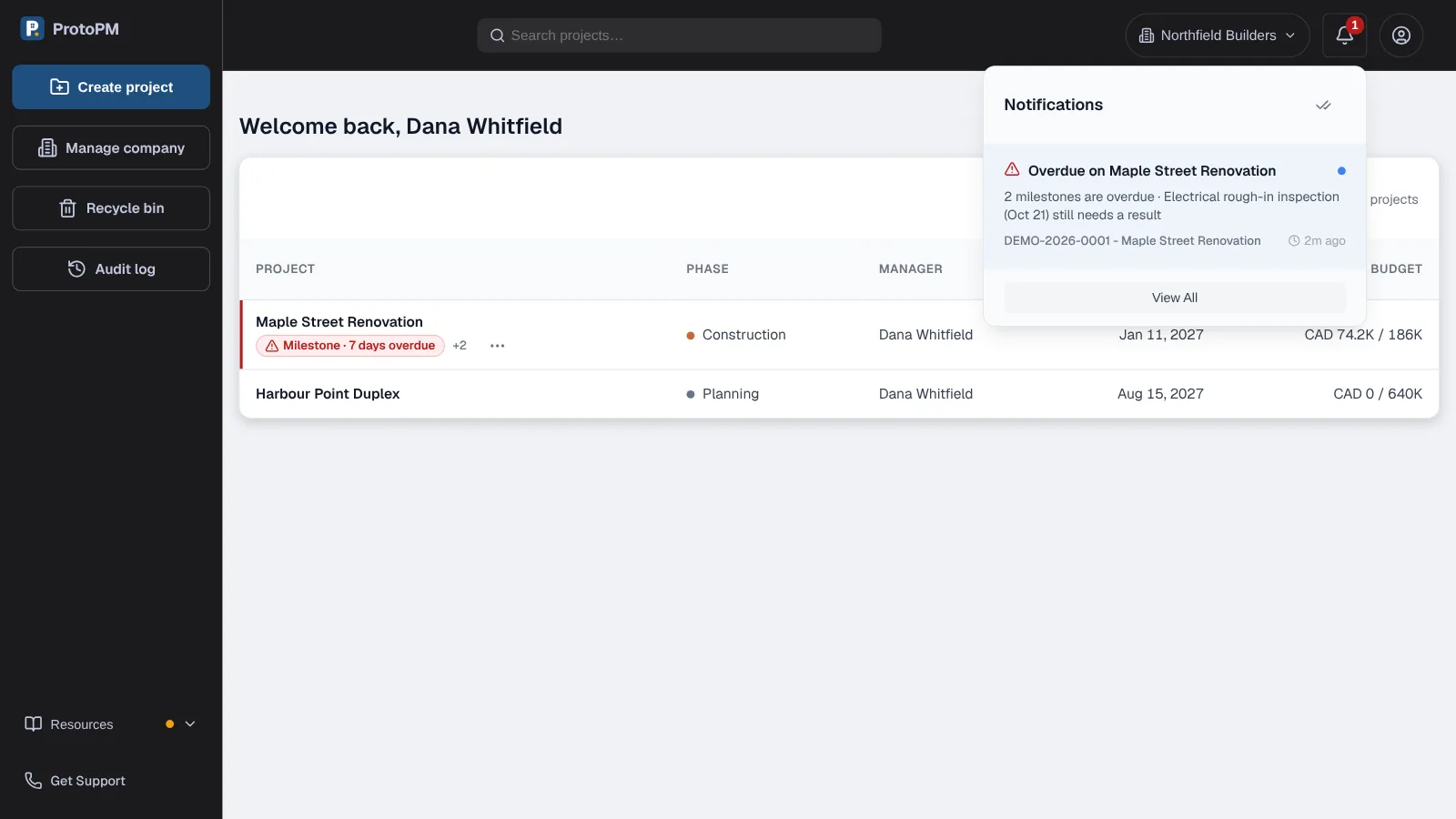
One bell message per project, with what is late. - Choose a reminder to open the project on the tab that needs you.
- Each project gets one bell message, written in your language.
- The message turns unread again only when something new comes up.
- When more than 5 projects need you in a day, the rest share one message: More projects need attention.
- The bell updates when you open Home, once a day. Nothing is emailed or sent to your phone.
Snooze or dismiss a reminder
- On Home, choose … next to the badge.
- Choose Snooze for 7 days to hide the reminder for a week.
- Or choose Dismiss for this date to hide it while the date stays the same.
- Changed your mind? Choose Undo on the message that appears.
- Give the item a new date and its reminder comes back.
Choose what the bell tells you about
- Open Settings and choose Notifications.
- Under Deadline reminders, tick Milestone dates, Project end dates, Inspections or Unpaid invoices.
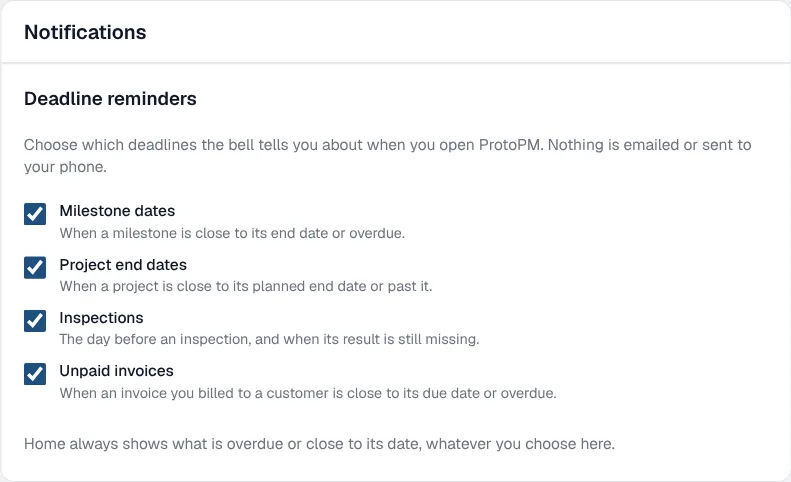
Pick which deadlines the bell tells you about.
- These switches only change the bell. Home always shows what is overdue or close to its date.
What counts as a deadline
- Milestones (key dates in your schedule) that are not finished. Home also flags one that starts today or tomorrow.
- The project's planned end date, unless the project is Closed.
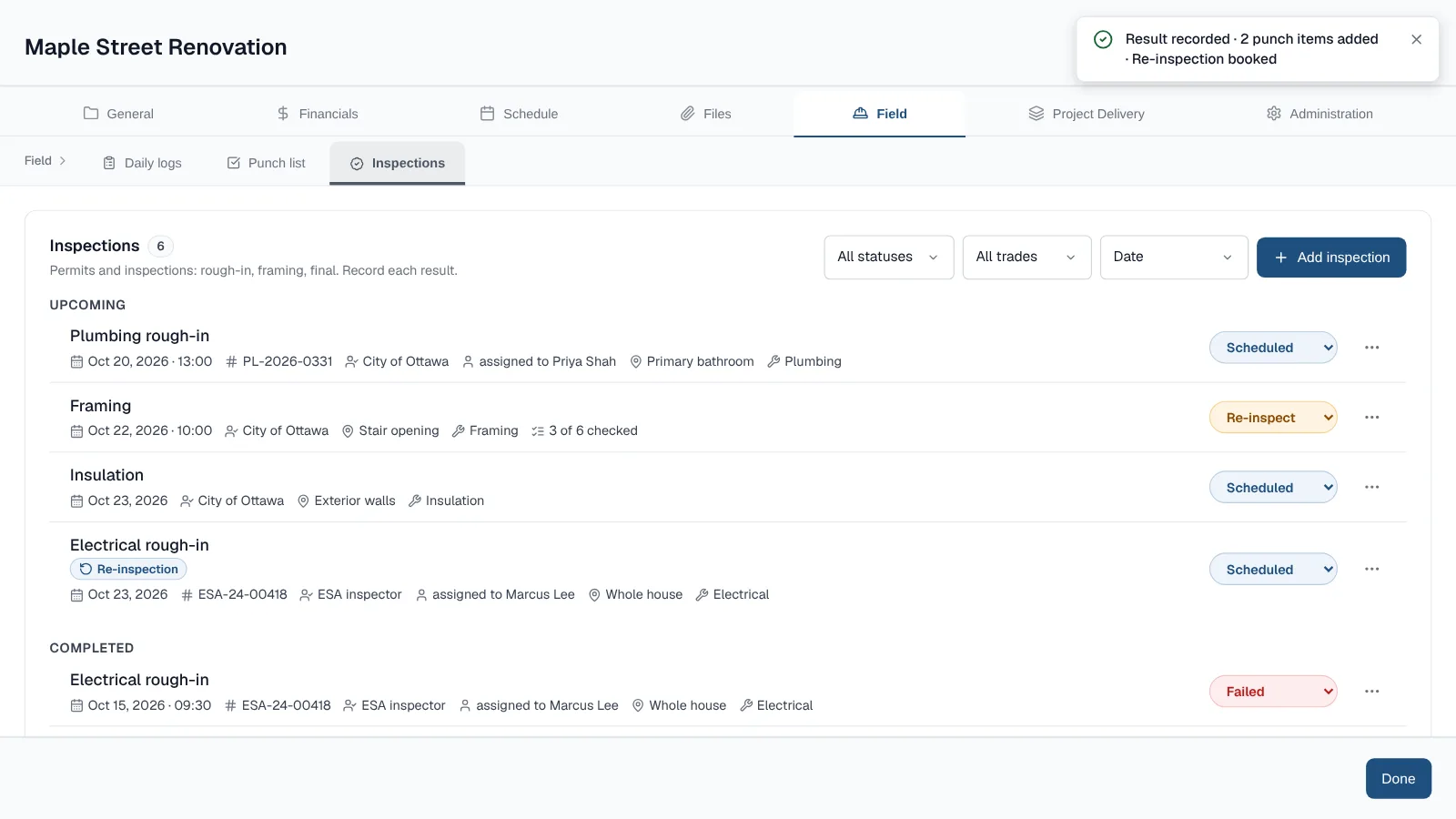
- Inspections that are scheduled or need a re-inspection. They warn as many days ahead as their Reminder says, 1 day unless you change it.
- Unpaid invoices with a due date that you billed to a customer.
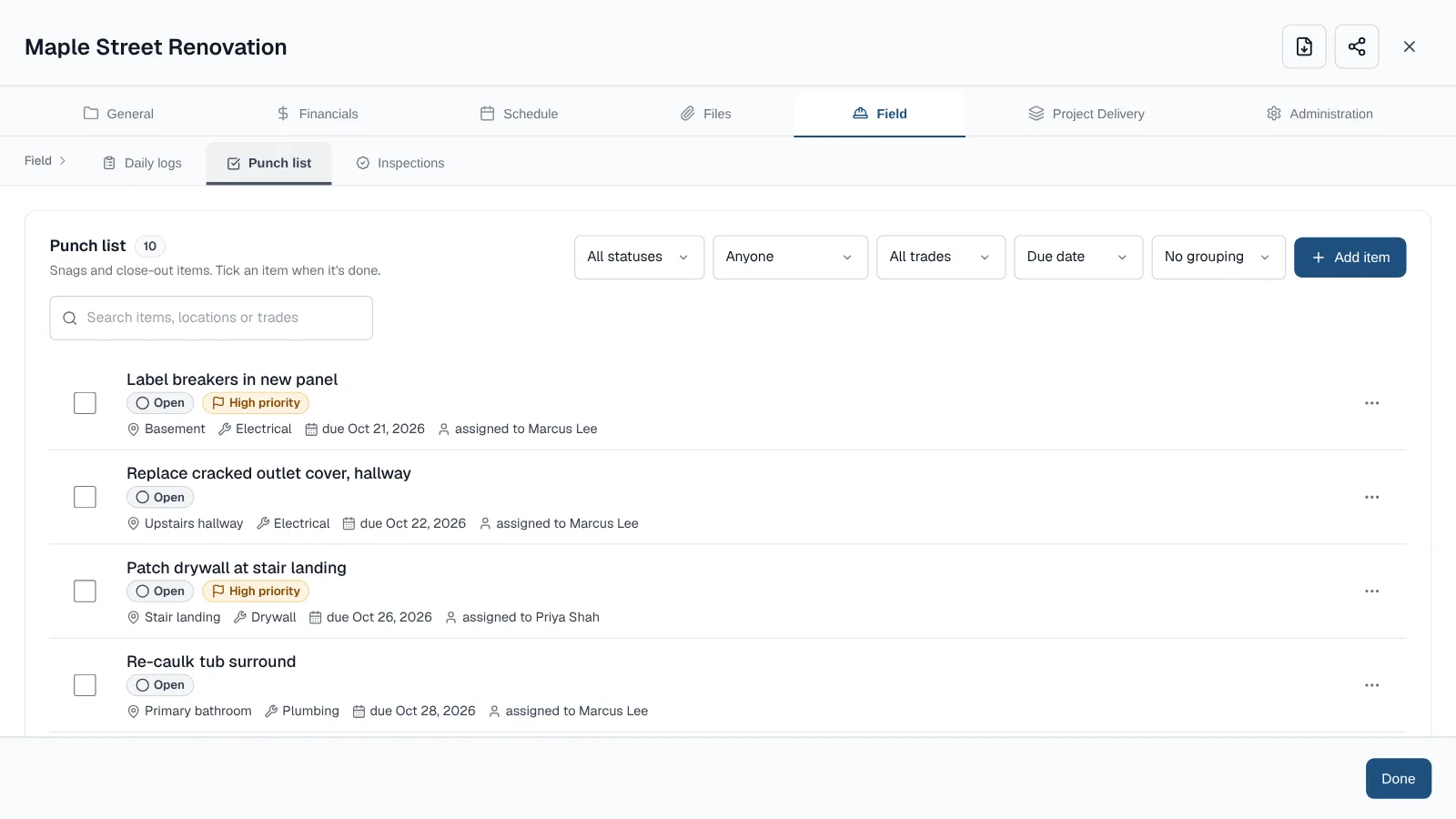
- Overdue punch items (small jobs still to fix), on Home only.
- Longer work warns earlier. A milestone warns ahead by 15% of its length, from 1 to 7 days.
- Closed projects never raise reminders.
Who gets reminders
- Owners, managers, members and the project manager get reminders for the project.
- Invoice reminders go only to owners, managers and the project manager.
- Guests only hear about the milestones given to them and their own invoices.
- Viewers get no reminders.
Frequently asked questions
Does ProtoPM email deadline reminders?
No. Reminders show on Home and in the bell inside ProtoPM. Nothing is emailed or sent to your phone.
How do I stop the reminder for one item?
On Home, choose … next to the project's badge. Snooze the item for 7 days, or dismiss it for its current date.
Who gets deadline reminders?
Owners, managers, members and the project manager. Invoice reminders go to owners, managers and the project manager. Guests only hear about their own milestones and invoices.